Extract Text from PDF
The fastest way to extract text from a PDF is to upload it to a tool that reads every page for you. Maybe your PDF is an invoice, a contract, a bank statement, or a scanned form. Copy and paste either does not work or scrambles the layout, and retyping it by hand is slow and error-prone.
This guide explains why people pull text out of PDFs, the situations where it matters most, and the easiest way to do it yourself, including how to send a PDF straight from your inbox. Lifting the text out is one of several ways to extract data from a PDF.
Why extract text from a PDF?
PDFs are built for sharing and printing, not for reusing the content inside them. The text on the page looks selectable, but the moment you try to lift it into a spreadsheet or another system, it falls apart. Lines run together, columns collapse, and scanned pages give you nothing at all.
Common reasons people extract text from a PDF:
- Invoices and receipts going into accounting software or an expense report
- Bank and credit card statements for budgeting and bookkeeping
- Contracts and agreements where you need the key terms in a searchable format
- Supplier price lists that have to be loaded into an inventory system
- Order confirmations and shipping reports
- Contact lists and attendee sheets from a conference PDF
- Research data copied out of a published report
- Forms, expense reports, and payroll summaries that arrive as PDFs every month
The text you need is already sitting on the page. The hard part is getting it out cleanly, in a structure you can actually use.
How to extract text from a PDF with NiceData
There are three steps, and the first one gives you two ways to get started.
Step 1: Get your PDF into NiceData
You can hand NiceData a PDF in two ways. Pick whichever fits how you already work.
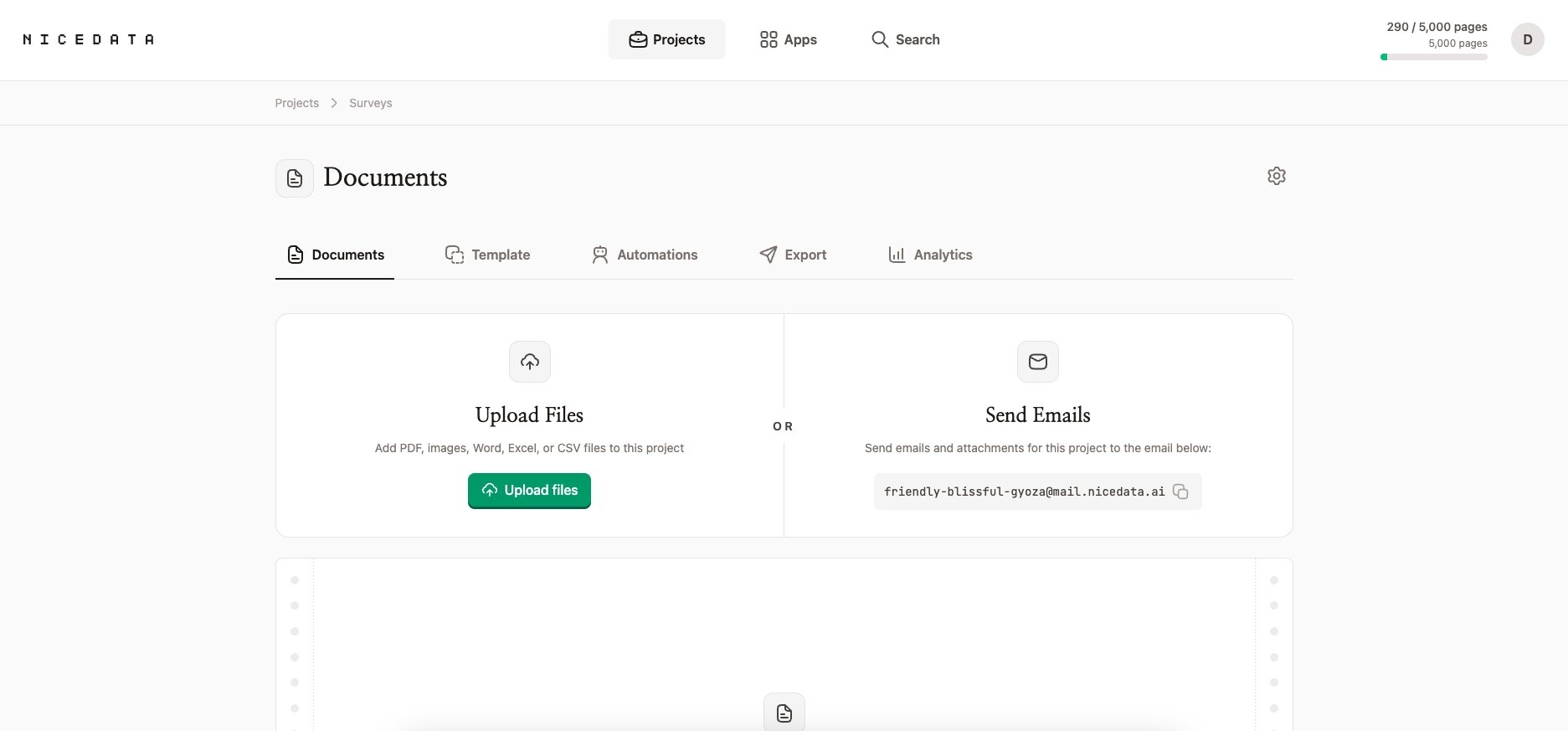
Upload it in the app. Sign in to NiceData and drag your PDF into the upload area, or click Upload files and pick it from your computer. You can drop in one file or multiple at once. Single-page and multi-page PDFs both work, and so do scanned PDFs and photos of pages. You do not need to clean anything up first. Skewed scans, logos, headers, and footers are all fine.
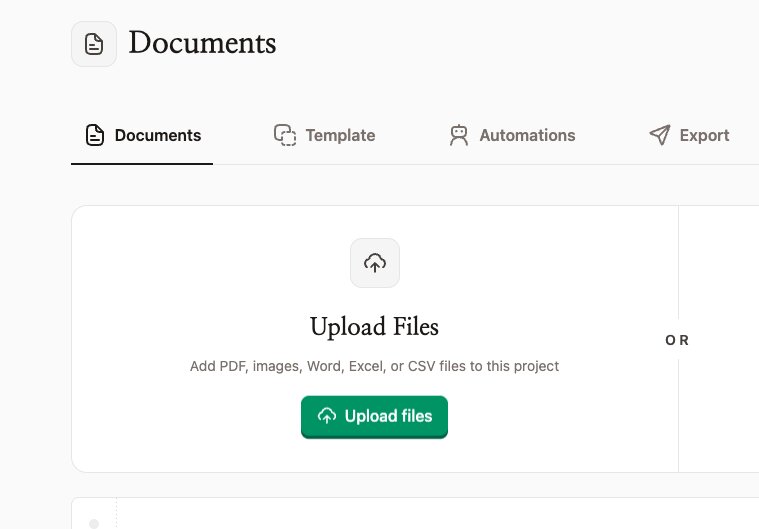
Email it as an attachment. Every project in NiceData has its own email address, which you can copy from the project settings. Attach your PDF to an email and send it to that address, or set up forwarding so documents land there automatically. NiceData processes the attachment the moment it arrives, exactly the way it processes a file you upload by hand. You can attach up to 10 files to a single email, and you can choose whether NiceData reads the attachments, the email body, or both.
Step 2: Let NiceData read the text
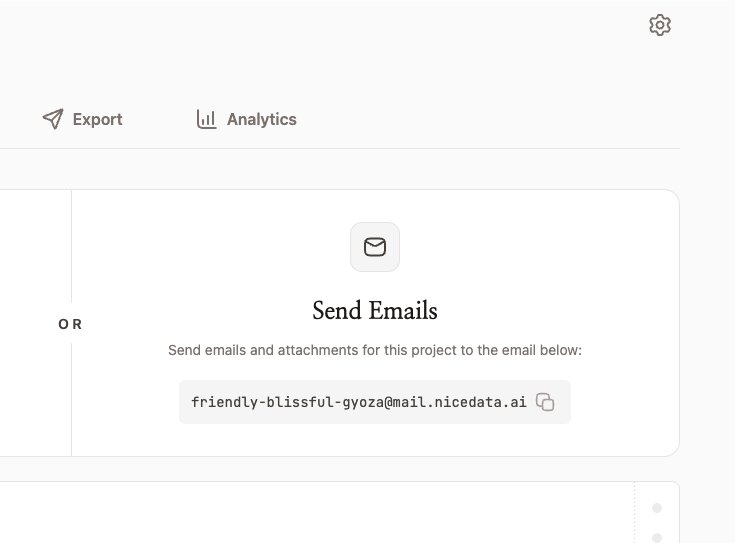
As soon as the PDF arrives, NiceData reads it. It uses AI to recognize every line of text, every column, header, date, and amount on the page, and organizes it all into clean, structured fields.
You do not have to mark up the document or tell it where anything sits. It works that out on its own, even on documents it has never seen before. Most PDFs finish processing in under a minute.
Step 3: Export the data
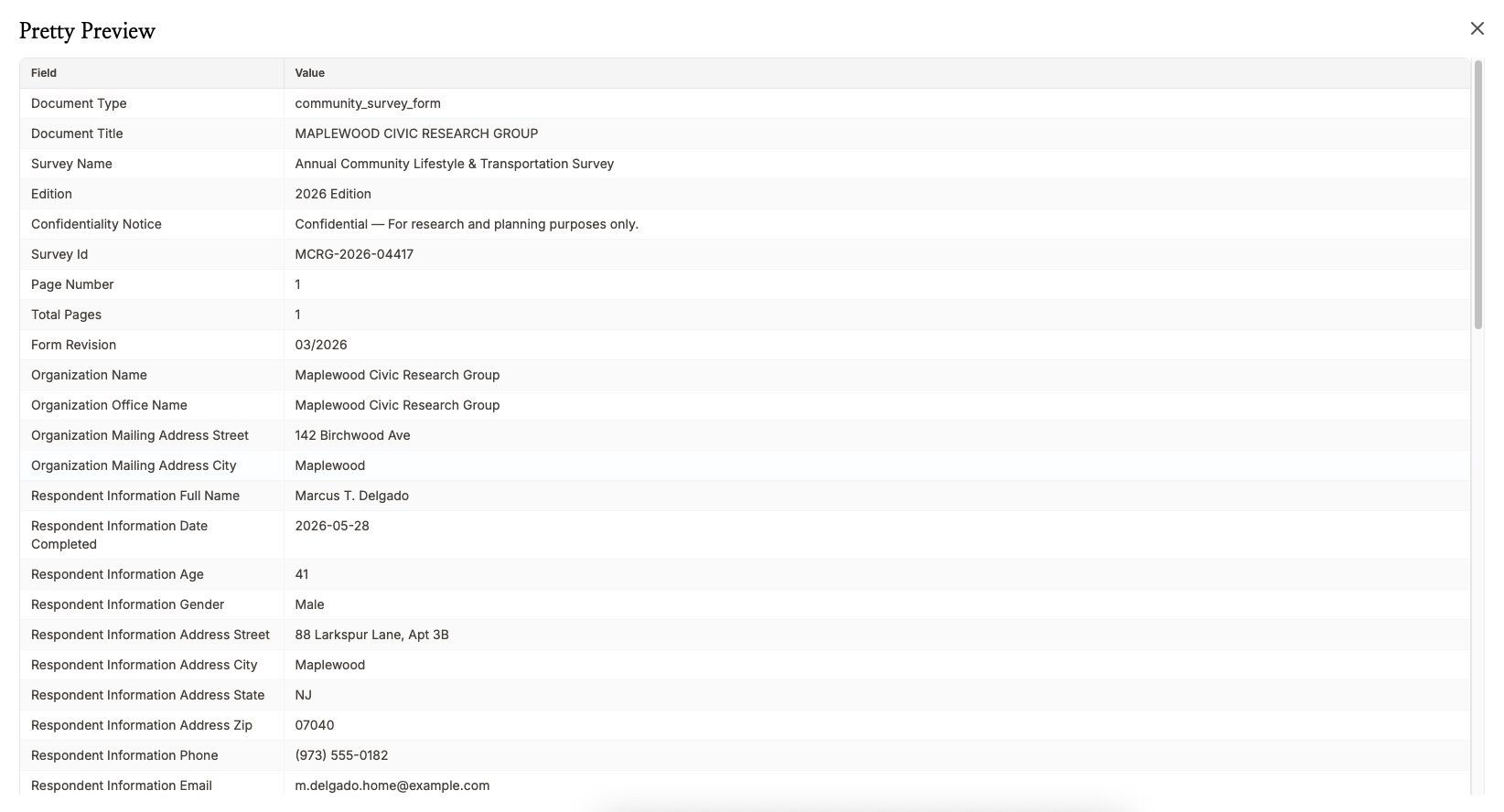
Once the extraction is done, click the Download button in the top right and pick the format you want. NiceData gives you the text as a clean file, ready to open in your spreadsheet or pass to another tool.
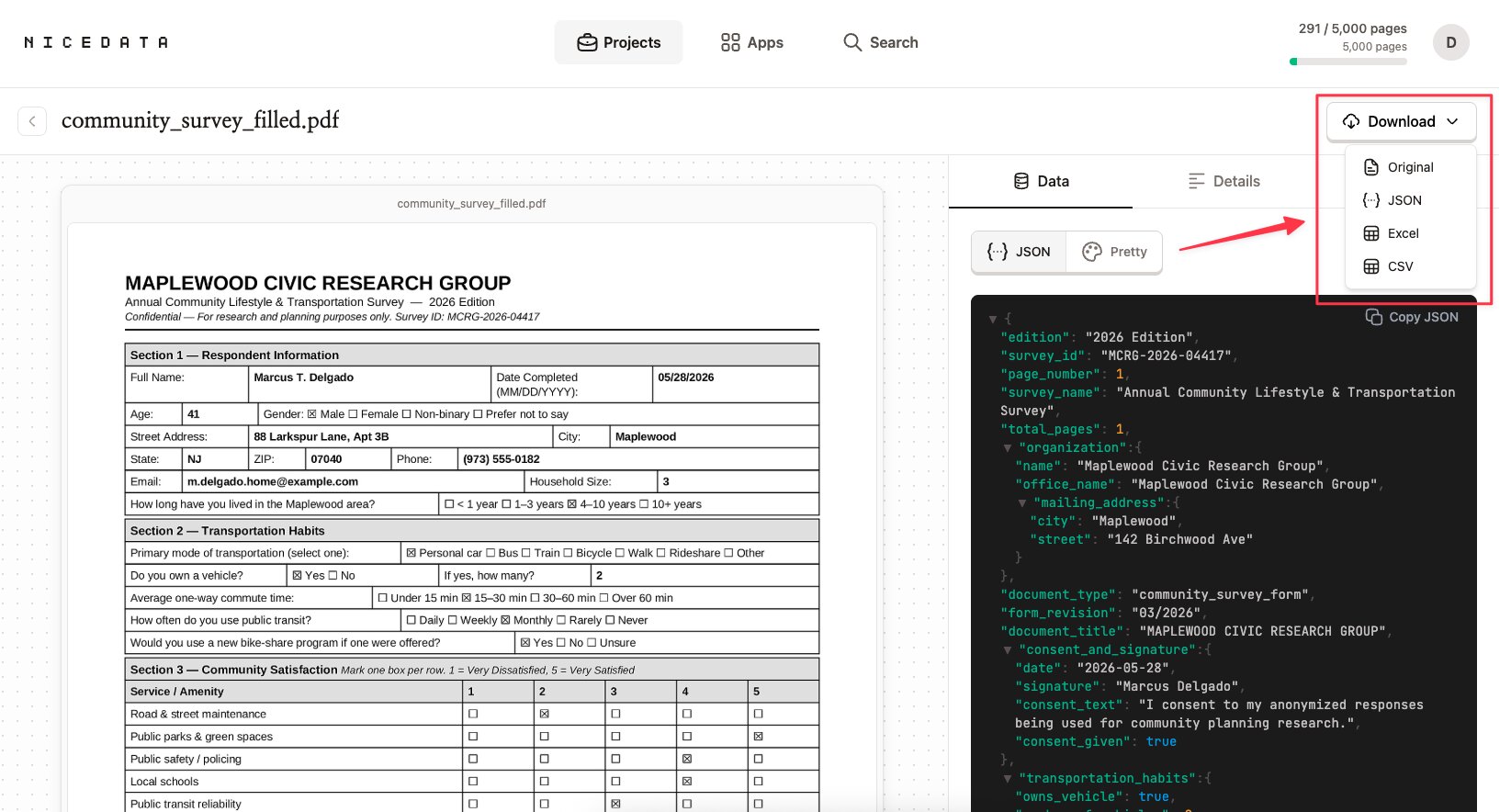
That is the whole process. From a PDF in your inbox or on your desktop to clean, usable text, in three steps.
How to control what gets extracted
By default, NiceData pulls every piece of text it can find from your PDF. If you only want specific fields, you can tell it in plain English.
Create a template for your document type, write your instructions in plain English (something like “Just give me the line items and totals”), and test it on a sample inside the template using the Testing Playground. NiceData applies that template to every PDF you upload or email to the project from then on.
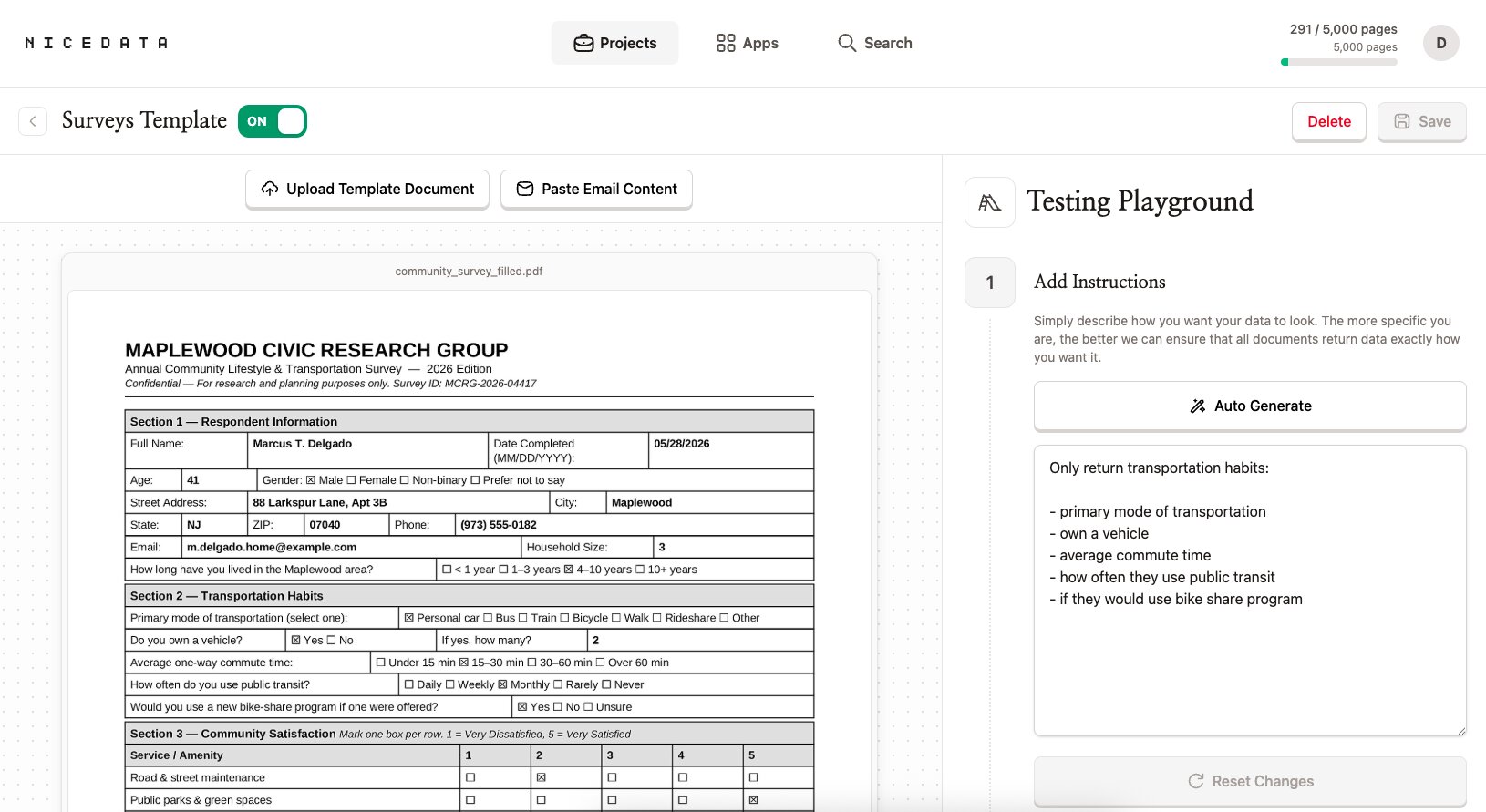
No rules to write. No fields to map. No regex. Just describe what you want and NiceData figures out the rest.
Why NiceData is the simplest way to extract text from a PDF
Most tools that promise to extract text from PDFs make you work for it. You have to draw out a visual template for every type of document, mapping each field to a region on the page. You have to train a model on dozens of labelled examples. You have to write rules to find specific fields. Some of them even ask you to sign up for a developer account and wire up code just to read one document.
NiceData skips all of that. You upload or email a PDF, NiceData reads it, you download the result. If you want to fine-tune what gets extracted, you create a template and describe what you want in plain English. No field mapping, no model training, no code.
That is the difference. Other tools are built for large technical teams. NiceData is built for anyone with a PDF and a deadline. Pick a plan on the pricing page, or start with the free trial and try it on your own documents.
What file types you can upload
PDF is the headline format for this guide, but NiceData reads almost any kind of document:
- PDF (single page or multi-page, digital or scanned)
- JPG and JPEG (photos and scans)
- PNG (screenshots and high-quality images)
- TIFF and TIF (often used by scanners)
- GIF and WebP
- Word documents (DOC and DOCX)
- Excel files (XLS and XLSX)
- CSV and plain text files
Drop them all into the same project if you like, or email them in. NiceData handles them the same way.
How to export your data
Once NiceData has read the PDF, you choose the format that fits where the text is going next.
- CSV is the right choice for spreadsheets and almost any business tool. Every field becomes a column, every document becomes a row.
- Excel is best when you want to share the file with colleagues. Headers are styled, the layout is clean, and it opens directly in Microsoft Excel or Google Sheets.
- JSON is the format developers prefer. If you are passing the text to another tool, an integration, or a custom app, JSON is the easiest to work with.
- Copy from the dashboard is the quickest option for one-off jobs. Open the document in NiceData, copy the fields you need, and paste them where you want them.
You can mix and match. Export the same PDF as a CSV for your finance team and as JSON for your developer, no extra steps.
Beyond downloading one document at a time, the Export tab gives you a few ways to get data out of a whole project at once.
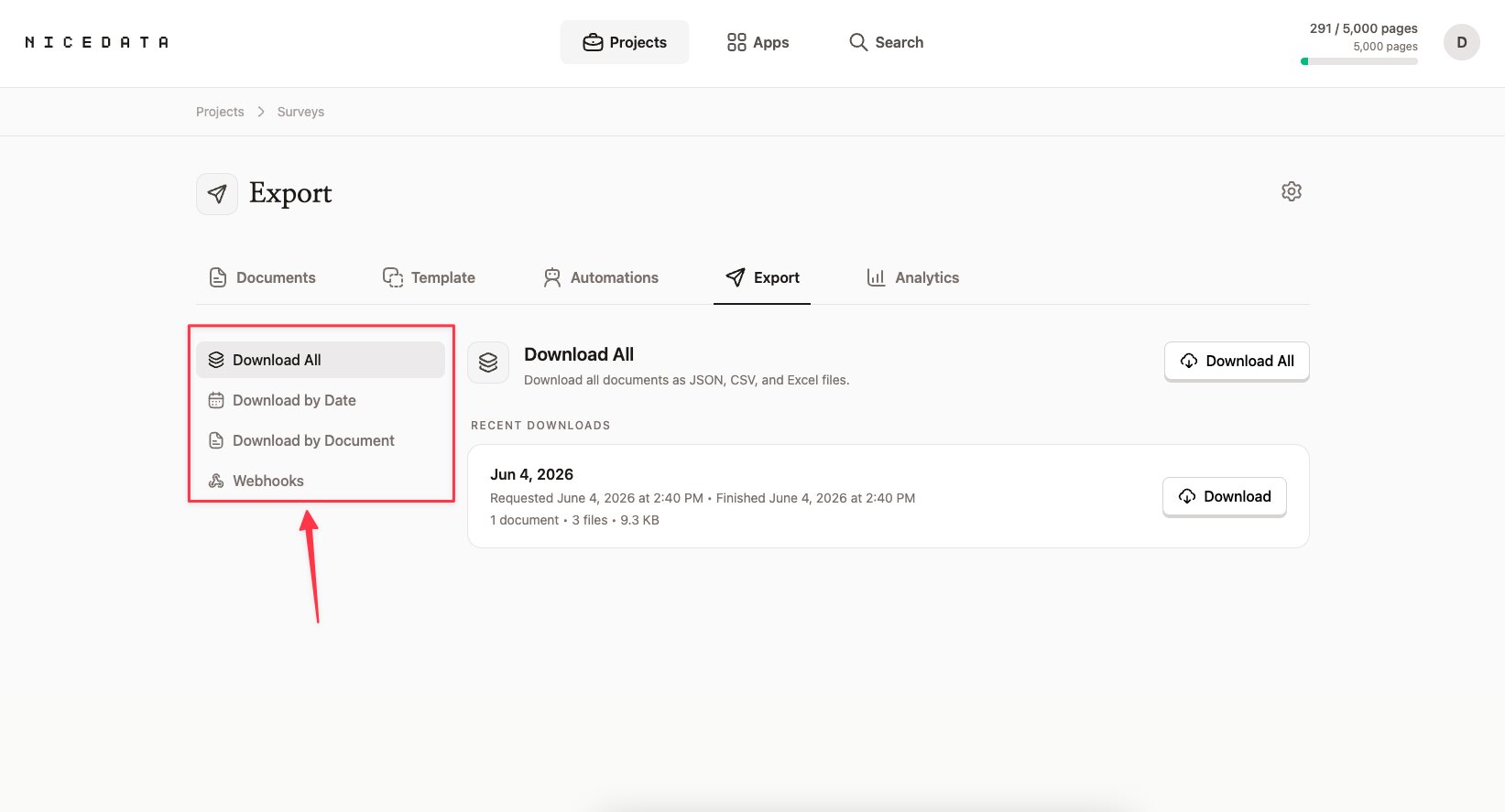
- Download All packages every document in the project into one set of JSON, CSV, and Excel files. Best for grabbing everything in a single click.
- Download by Date limits the export to documents from a date range you pick, so you can pull just last month or last quarter.
- Download by Document lets you hand-pick the specific documents you want and export only those.
- Webhooks send the extracted data to another tool the moment a document finishes processing, so you do not have to download anything by hand at all.
Frequently asked questions
Is it free to try?
Yes. NiceData has a 14-day free trial that includes 25 pages of extraction. No credit card required. You can extract text from your own PDFs before deciding whether to subscribe.
Do I need to know how to code?
No. NiceData is designed for people who have never written a line of code in their lives. The whole workflow happens in your browser. If you can drag a file into a folder or send an email, you can extract text from a PDF with NiceData.
How accurate is the extraction?
Very accurate, in our experience. NiceData uses modern AI to read PDFs, so it handles digital exports, scans, and even most handwritten pages well. It correctly picks up lines, columns, headers, dates, and totals on documents it has never seen before.
Can it handle multi-page PDFs?
Yes. Upload a multi-page PDF and NiceData reads every page, up to 25 pages per document. Each page counts as one page against your monthly plan, so a 20-page PDF uses 20 pages of your allowance.
Can I email a PDF instead of uploading it?
Yes. Every project has its own email address. Forward or send an email with a PDF attached and NiceData processes the attachment automatically, the same way it processes a file you upload by hand. You can attach up to 10 files per email.
Is my data secure?
Yes. Your documents are encrypted in transit and at rest, and stored in isolated project folders that only you and your team can access. You can also set documents to delete automatically after 1, 14, 30, 60, or 90 days.
Related guides
Extract Text from an Image
Extract text from any image in seconds with NiceData. Upload a photo, screenshot, or scan, and export the data as JSON, CSV, or Excel. Get started free.
Extract Tables from PDF
Extract tables from any PDF in seconds. NiceData rebuilds every row and column as a clean grid you can drop into a spreadsheet. Try it free.
Extract Keywords from Text
Extract keywords from any text or document in seconds with NiceData. Upload a file, pull out the key terms, and export to CSV, Excel, or JSON. Try it free.

Dace Willmott
Founder
NiceData aims to eliminate manual data entry from document workflows. We write about AI-powered document processing, data extraction best practices, and the tools that help teams move faster with cleaner data.