Extract Keywords from Text
Extracting keywords from text no longer means skimming pages of reports, survey answers, or contracts with a highlighter. Software can read the document for you and pull out the terms that matter: upload the file, describe the keywords you care about, and get a clean list back in seconds.
This guide covers why teams extract keywords from text, how to do it yourself in three steps, and how to control exactly which terms come back.
Why extract keywords from text?
A keyword is any term that carries the meaning of a document: a topic, a product name, a person, a recurring complaint, a defined term in a contract. Pulling those out of long text by hand is slow, and it is the kind of work that quietly eats whole afternoons. Common reasons teams automate it:
- Content and SEO teams pull the recurring topics and phrases out of articles and drafts to see what a page is actually about.
- Researchers tag interview transcripts, papers, and reports by theme so they can group and compare them later.
- Support teams spot product names and recurring issues across hundreds of tickets and feedback forms.
- Marketers mine reviews and survey responses for the exact words customers use to describe a product.
- Legal and operations teams pull defined terms, party names, and deadlines out of contracts.
- Recruiters extract skills and qualifications from stacks of CVs.
In every case the goal is the same: turn a wall of text into a short, structured list of terms you can sort, count, and act on.
How to extract keywords from text with NiceData
There are three steps. That is the whole process.
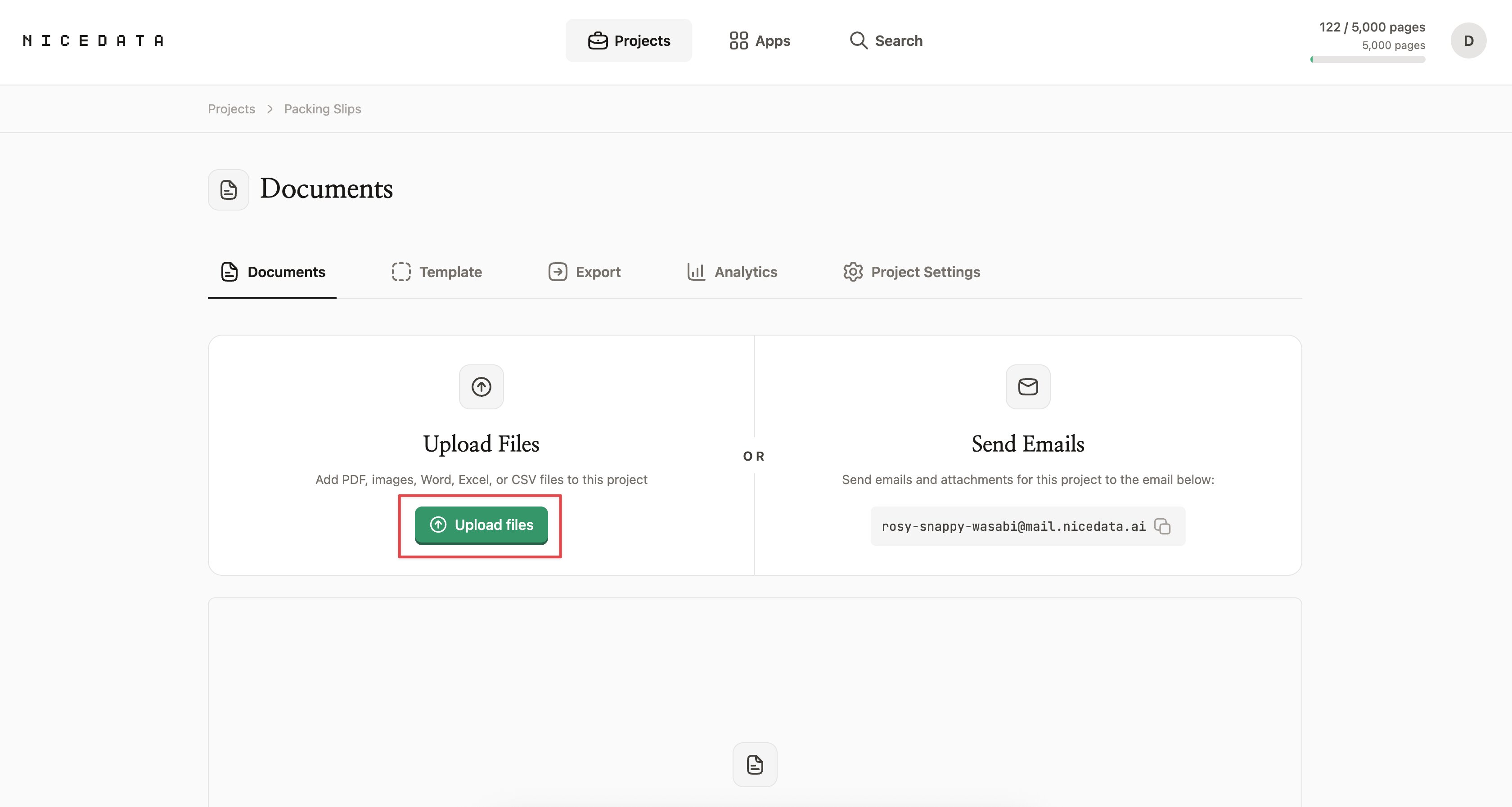
Step 1: Upload your document
Sign in to NiceData and drag your file into the upload area. You can drop in one document or hundreds at a time, and you can also email files straight into your project as attachments. PDFs, Word documents, photos, screenshots, and scans all work.
The text does not need to be clean or well formatted first. A photographed survey form works just as well as a typed report.
Step 2: Let NiceData pull out the keywords
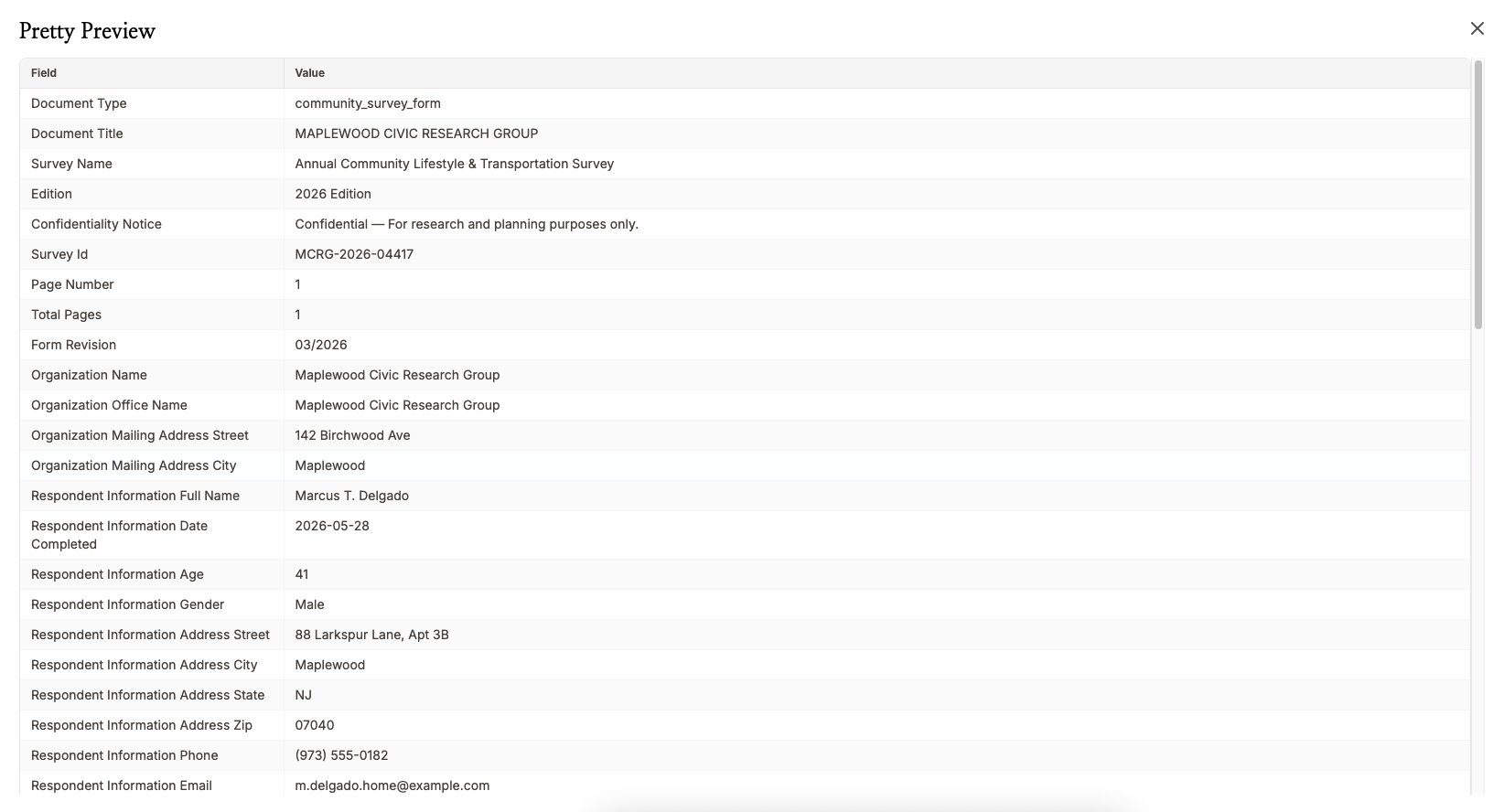
As soon as the upload finishes, NiceData starts reading. It uses AI to understand the document as a whole, so it can pick out the topics, names, and terms that carry the meaning, not just the words that appear most often.
You do not have to highlight anything, mark up the page, or tell it where to look. Every term comes back as a labelled field you can actually use.
Most documents finish processing in under a minute.
Step 3: Export your keywords
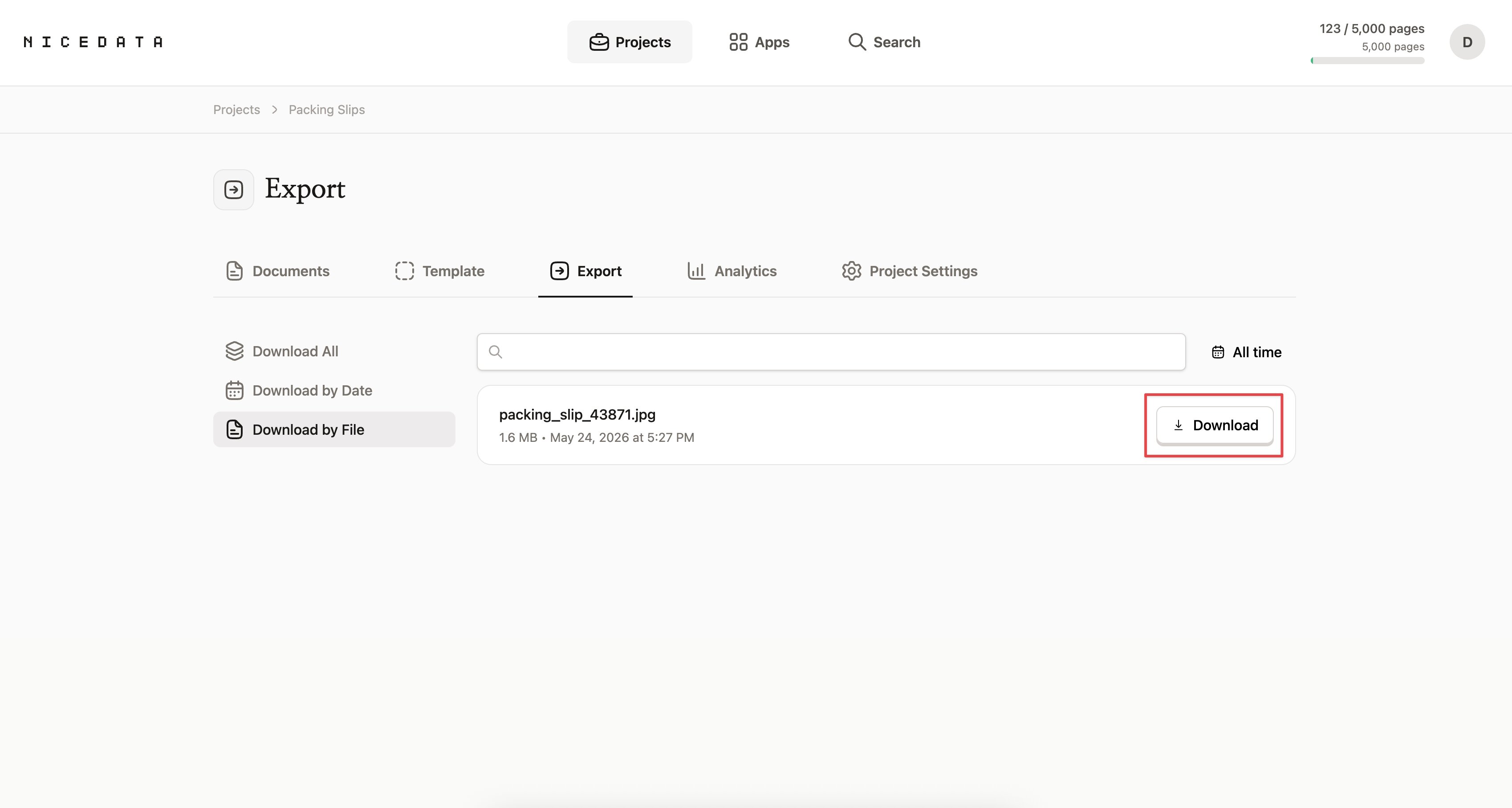
Once the extraction is done, you have a few options:
- View the keywords in the NiceData dashboard and copy what you need.
- Download them as a CSV to open in Excel, Google Sheets, or Numbers.
- Download them as an Excel file with headers already styled and ready to share.
- Download them as JSON if you want to pass them to a developer or another tool.
That is it. From a folder of documents to a clean list of keywords, in three steps.
How to control which keywords get extracted
By default, NiceData reads everything it can find in your document. For keyword extraction you usually want something more specific, and you can ask for it in plain English.
Create a template for your document type and write what you want as instructions. For example:
- “List the 10 most important topics in this document.”
- “Pull out every product name mentioned, with a count of how often each appears.”
- “Extract the skills and qualifications from this CV.”
- “List the recurring complaints in this feedback, grouped by theme.”
Then test the template on a sample document inside the template. Once it returns the keywords you want, NiceData applies those instructions to every document you upload to the project from then on.
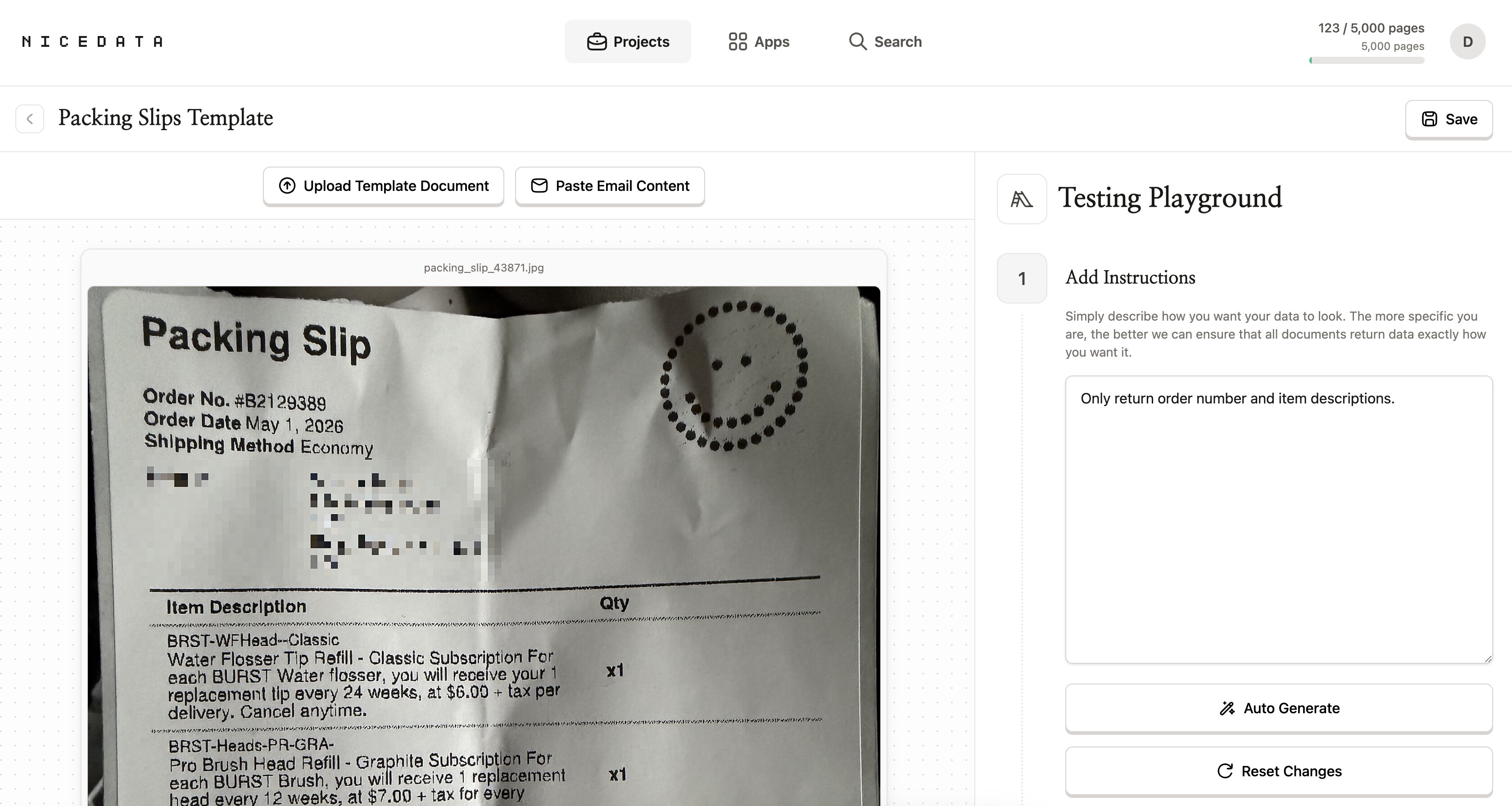
No rules to write. No fields to map. No regex. Just describe what you want and NiceData figures out the rest.
Why NiceData is the simplest way to extract keywords
Most tools that promise keyword extraction make you work for it. You have to draw out a visual template for every type of document, mapping each field to a region on the page. You have to train a model on dozens of labelled examples before the results are usable. You have to write extraction rules, or sign up for a developer account and wire up code just to analyse one report.
NiceData skips all of that. You upload a document, NiceData reads it, you download the result. If you want to tune which keywords come back, you create a template and describe what you want in plain English (no field mapping, no model training, no code).
This is the difference. Other tools are built for large technical teams. NiceData is built for anyone with a document and a deadline. You can try it free for 14 days, then pick a plan that matches your volume.
What file types you can upload
NiceData extracts keywords from all the common document and image formats:
- PDF (single page or multi-page)
- Word documents (DOC and DOCX)
- JPG and JPEG (photos and scans)
- PNG (screenshots and high-quality images)
- TIFF and TIF (often used by scanners)
- Excel files and CSVs (if your text lives in a spreadsheet)
If you need every word out of a document rather than just the key terms, see our guides on how to extract text from a PDF and how to extract text from an image, or start with the overview of how to extract data from a PDF.
How to export your keywords
Once NiceData has read your text, you can export the keywords in whatever format works best for what you are doing next.
- CSV is the right choice if you want to sort and count keywords in a spreadsheet. Every field becomes a column, every document becomes a row.
- Excel is best when you want to share the results with colleagues. The headers are formatted, the layout is clean, and it opens directly in Microsoft Excel or Google Sheets.
- JSON is the format developers prefer. If you are passing the keywords to another tool, an integration, or a custom app, JSON is the easiest to work with.
- Copy from the dashboard is the quickest option for one-off jobs. Open the document in NiceData, copy the terms you need, paste them where you want them.
You can mix and match. Export the same project as an Excel file for your team and as JSON for your developer, no extra steps.
Frequently asked questions
Is it free to try?
Yes. NiceData has a 14-day free trial that includes 25 pages of extraction. No credit card required. You can test it on your own documents before deciding whether to subscribe.
Do I need to know how to code?
No. NiceData is designed for people who have never written a line of code in their lives. The entire workflow happens in your browser through a friendly interface. If you can drag a file into a folder, you can use NiceData.
How accurate is the keyword extraction?
Very accurate, in our experience. NiceData uses modern AI to read and understand your document, so it picks up the terms that actually matter rather than just counting word frequency. It handles printed documents, scans, photos, and even most handwritten notes well.
What languages does it support?
Any language. NiceData reads text in English, French, Spanish, German, Italian, Portuguese, Japanese, Korean, Chinese, and dozens more. You do not have to tell it which language the document is in. It figures that out automatically.
Can it handle multi-page PDFs?
Yes. Upload a multi-page PDF and NiceData reads every page. Each page counts as one page against your monthly plan, so a 25-page document uses 25 pages of your allowance.
Is my data secure?
Yes. Your documents are encrypted in transit and at rest, and stored in isolated project folders that only you and your team can access. You can also set documents to delete automatically after 1, 14, 30, 60, or 90 days.
Related guides
Extract Text from PDF
Extract text from any PDF in seconds. Upload it or email it in, and NiceData turns it into clean, structured data you can edit and export. Start free.
Extract Text from an Image
Extract text from any image in seconds with NiceData. Upload a photo, screenshot, or scan, and export the data as JSON, CSV, or Excel. Get started free.
How to Extract Data from a PDF
Extract data from any PDF in seconds with NiceData. Pull text, tables, or specific fields, then export to CSV, Excel, or JSON. No setup, no code. Try it free.

Dace Willmott
Founder
NiceData aims to eliminate manual data entry from document workflows. We write about AI-powered document processing, data extraction best practices, and the tools that help teams move faster with cleaner data.