Data Entry Automation
Data entry automation means letting software read your documents and type the data in for you. Instead of copying values off invoices, receipts, and forms by hand, you hand the document to a tool that recognises every field and gives you clean, structured rows in seconds.
This guide explains how data entry automation works, where it saves the most time and money, and the easiest way to set it up yourself, with no technical skills required.
What is data entry automation?
Data entry automation is the use of software to capture information from documents and enter it into your systems without a person typing it. The document goes in at one end (a PDF invoice, a photo of a receipt, a scanned form), and structured data comes out the other (rows with the vendor, date, line items, and total already filled in).
The point is not just speed. Manual entry has a second cost that is easy to miss: errors. A tired person transposes digits, skips a line, or puts a value in the wrong column, and the mistake travels downstream into reports, payments, and decisions. Automated data entry reads the same page the same way every time.
Why automate data entry?
If your team handles documents, some part of someone’s week is already going to retyping them. The most common candidates for automation:
- Invoices and receipts going into accounting software or an expense report
- Bank and credit card statements for bookkeeping and reconciliation
- Purchase orders and order confirmations entered into inventory or fulfilment systems
- Forms and applications collected on paper or as PDF attachments
- Business cards and contact lists headed for a CRM
- Contracts where the key terms need to live in a tracker, not a filing cabinet
The math adds up quickly. A person typing receipts into a spreadsheet manages two or three documents a minute on a good day. A hundred receipts is an afternoon. Ten hours of entry a week is more than 500 hours a year, all spent producing data that still needs to be checked for typos. Automation collapses that work into minutes, which is also why it sits at the heart of the best data entry software decisions teams make.
How to automate data entry with NiceData
NiceData automates the whole flow in three steps. There is no setup phase, no training period, and nothing to install. You can see the same flow on the homepage, or check pricing to compare a subscription against the cost of typing the same data by hand.
Step 1: Upload your documents or email them in
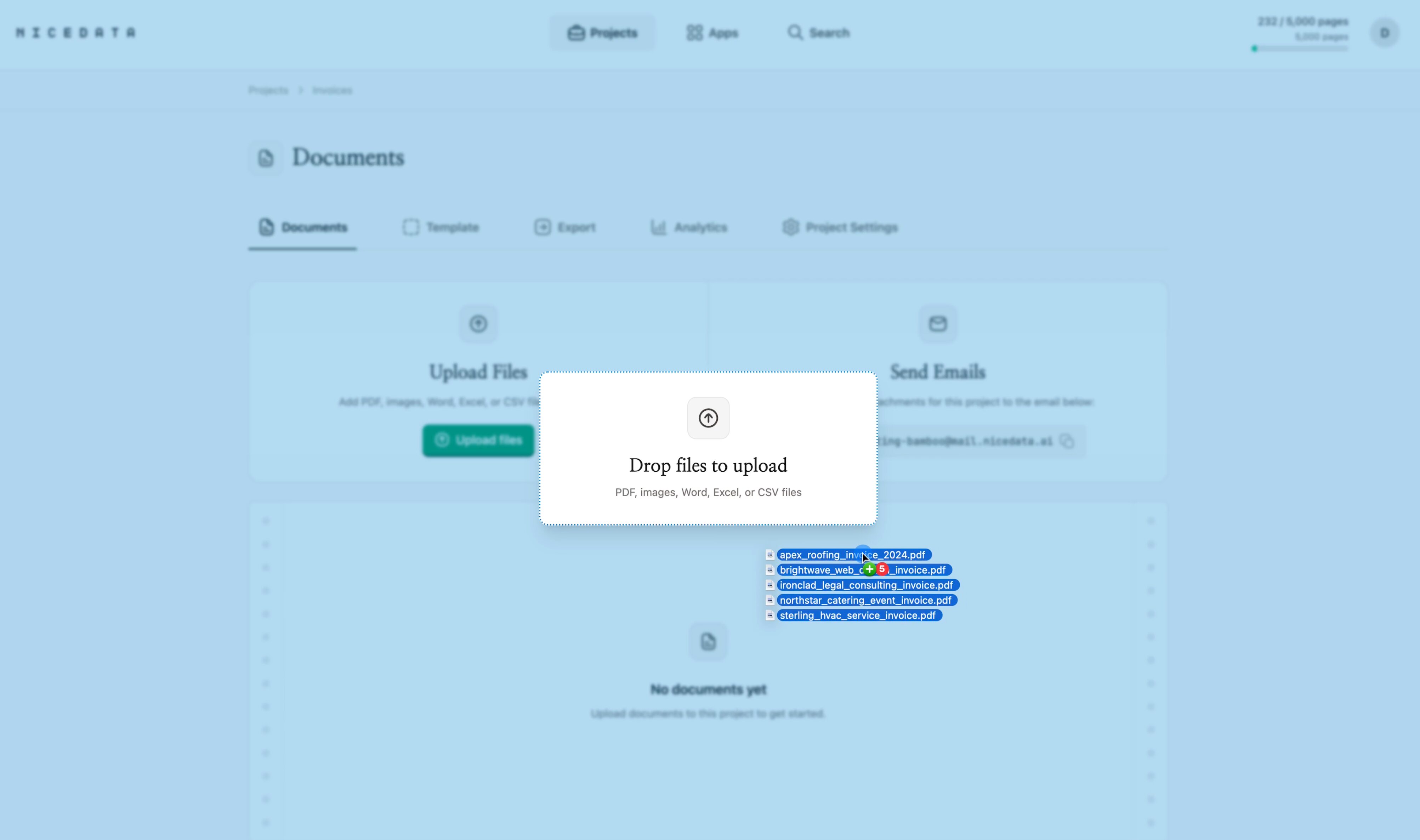
Sign in, create a project, and drag your documents into the upload area. You can drop in one file or hundreds at a time. Every project also comes with its own email address, so you can forward an invoice straight from your inbox and NiceData treats the attachment exactly like an uploaded file.
Step 2: Let NiceData do the typing
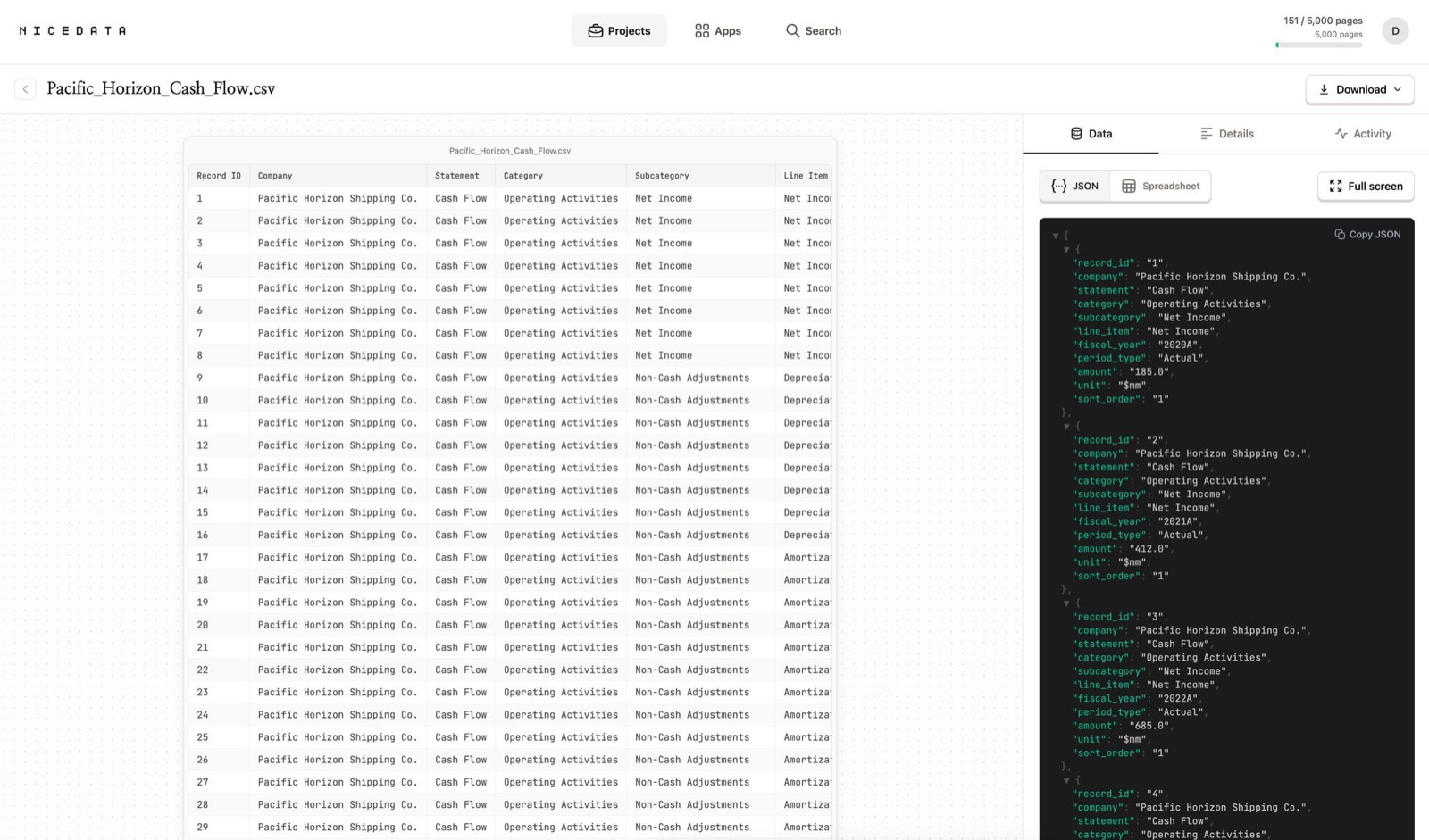
NiceData reads each page with modern AI and recognises every value on it: names, dates, addresses, totals, line items, reference numbers. It organises the information into clean fields automatically. You do not draw boxes on the page, map fields, or show it examples first. It simply reads the document the way a careful person would, just thousands of times faster.
Step 3: Review and export
Open the results in your dashboard, scan them for anything you want to adjust, and export. The data comes out as CSV, Excel, or JSON, ready for your spreadsheet, accounting tool, or database. The typing is done; your job is reduced to a quick review.
How to control what gets extracted
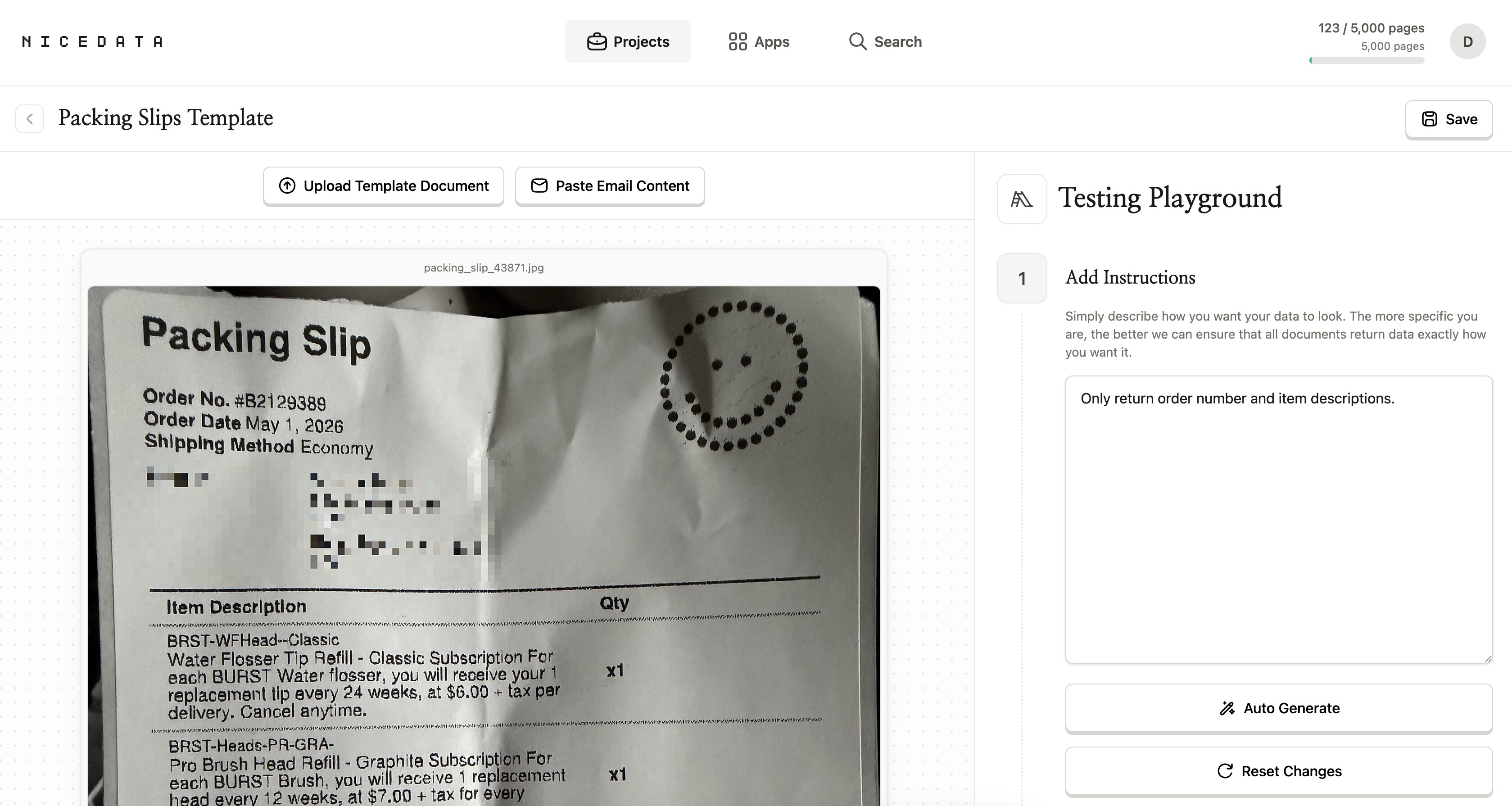
By default NiceData captures everything it finds, which is the right starting point for most documents. When you want only specific fields, create a template for your document type and describe what you want in plain English: “the invoice number, the supplier name, the due date, and the total including tax.”
You can test the template on a sample document in the Testing Playground and refine the wording until the output is exactly right. Every document you add afterwards follows the same instructions.
Why NiceData is the simplest data entry automation tool
Most data entry automation tools were built for large technical teams. Before you automate anything, they expect you to draw a visual layout for every document type, map each field to a region on the page, train a model on dozens of labelled examples, or sign up for a developer account and wire up code.
NiceData skips all of that. Upload, extract, export. The first document you add is processed the same way as the ten thousandth, with no setup in between. It is built for the people who actually do the data entry: operations, finance, admin, sales, and HR, not engineering departments.
What file types you can upload
NiceData handles the formats documents actually arrive in:
- PDF (single page or multi-page, digital or scanned)
- JPG and JPEG (photos and scans)
- PNG (screenshots and high-quality images)
- GIF and WebP
- TIFF and TIF (common scanner formats)
- Word documents, Excel files, and CSVs
Mix formats freely in one project. A PDF invoice, a photo of a receipt, and a scanned form can all go into the same batch and come back in the same export. For a closer look at the document side, see how to extract data from a PDF.
How to export your data
Once extraction finishes, choose the format that fits where the data lives:
- CSV for spreadsheets, accounting imports, and database tools. The universal option.
- Excel when the data goes straight to a workbook, or your team works in Excel all day. If your source documents are PDFs, this pairs well with converting a PDF to Excel.
- JSON when a developer is wiring the data into an internal system.
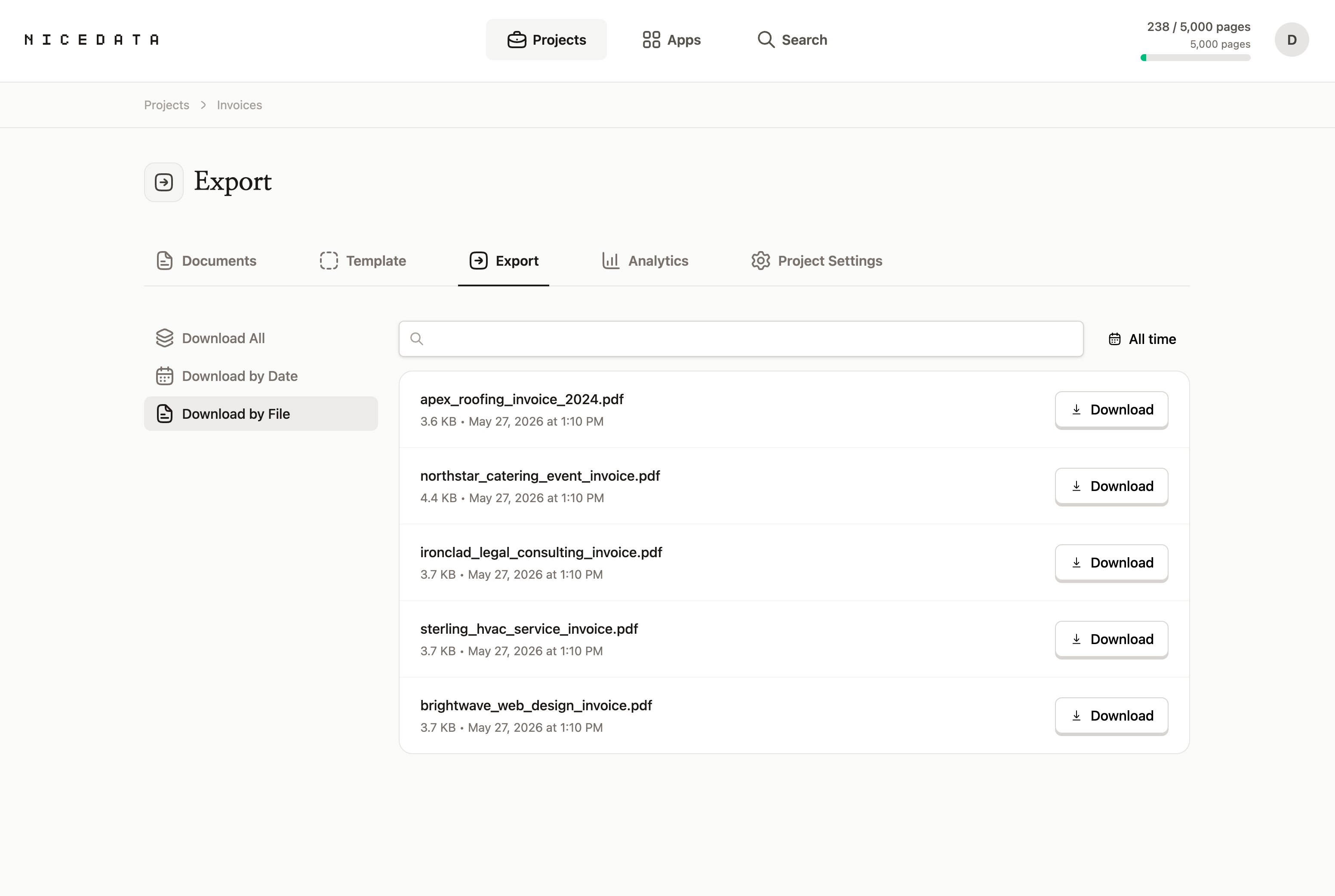
You can download a single document’s results, a date range, or everything in the project at once.
Frequently asked questions
What is data entry automation?
Data entry automation is using software to read documents like invoices, receipts, and forms, and to enter the data they contain into your systems automatically. Instead of a person reading a page and typing each value into a spreadsheet, the software recognises the fields and produces clean structured rows in seconds.
Is it free to try?
Yes. NiceData has a 14-day free trial that includes 25 pages of extraction. No credit card required. You can automate the data entry on your own documents before deciding whether to subscribe.
Do I need to know how to code?
No. NiceData is designed for people who have never written a line of code. The whole workflow happens in your browser. If you can drag a file into a folder or send an email, you can automate your data entry.
How accurate is automated data entry?
Very accurate, in our experience. NiceData uses modern AI to read documents, so it handles digital files, scans, photos, and most handwritten pages well. It correctly picks up names, dates, totals, and line items on documents it has never seen before, which is exactly where manual typing tends to introduce errors.
What kinds of documents can I automate?
Invoices, receipts, bank statements, purchase orders, contracts, forms, business cards, and more. NiceData accepts PDFs, photos, scans, screenshots, Word documents, Excel files, and CSVs. You can upload them in your browser or email them in as attachments, up to 10 files per email.
Is my data secure?
Yes. Your documents are encrypted in transit and at rest, and stored in isolated project folders that only you and your team can access. You can also set documents to delete automatically after 1, 14, 30, 60, or 90 days.
Related guides
The best data entry software in 2026
Excel, Google Sheets, Airtable, and Notion compared as data entry software in 2026. NiceData automates the typing into whichever you use. Try it free.
How to Extract Data from a PDF
Extract data from any PDF in seconds with NiceData. Pull text, tables, or specific fields, then export to CSV, Excel, or JSON. No setup, no code. Try it free.
Convert PDF to Excel
Convert any PDF to a clean Excel spreadsheet in seconds with NiceData. Upload your file, read it with AI, and download a ready-to-use workbook. Try it free.

Dace Willmott
Founder
NiceData aims to eliminate manual data entry from document workflows. We write about AI-powered document processing, data extraction best practices, and the tools that help teams move faster with cleaner data.