How to Extract Text from an Image
If you have a photo of a receipt, an invoice, a business card, or a screenshot full of text, you can pull every word out of it in seconds. No typing it out by hand. No fiddly software to set up. No templates to draw.
This guide shows you how to extract text from an image using NiceData, the simplest way to turn any document into clean, structured data you can use in a spreadsheet, a database, or anywhere else.
Why extract text from an image?
Most teams spend hours every week retyping information that already exists in pictures and PDFs. Common examples:
- Receipts for expense reports
- Invoices from suppliers
- Business cards collected at events
- Handwritten notes from meetings
- Screenshots of emails or web pages
- Scanned forms filled in by customers
- Photos of whiteboards after a brainstorm
Pulling that text out manually is slow and error-prone. Extracting it automatically gives you the same data in seconds, ready to drop into a spreadsheet or send to your accounting tool.
How to extract text from an image with NiceData
There are three steps. That is the whole process.
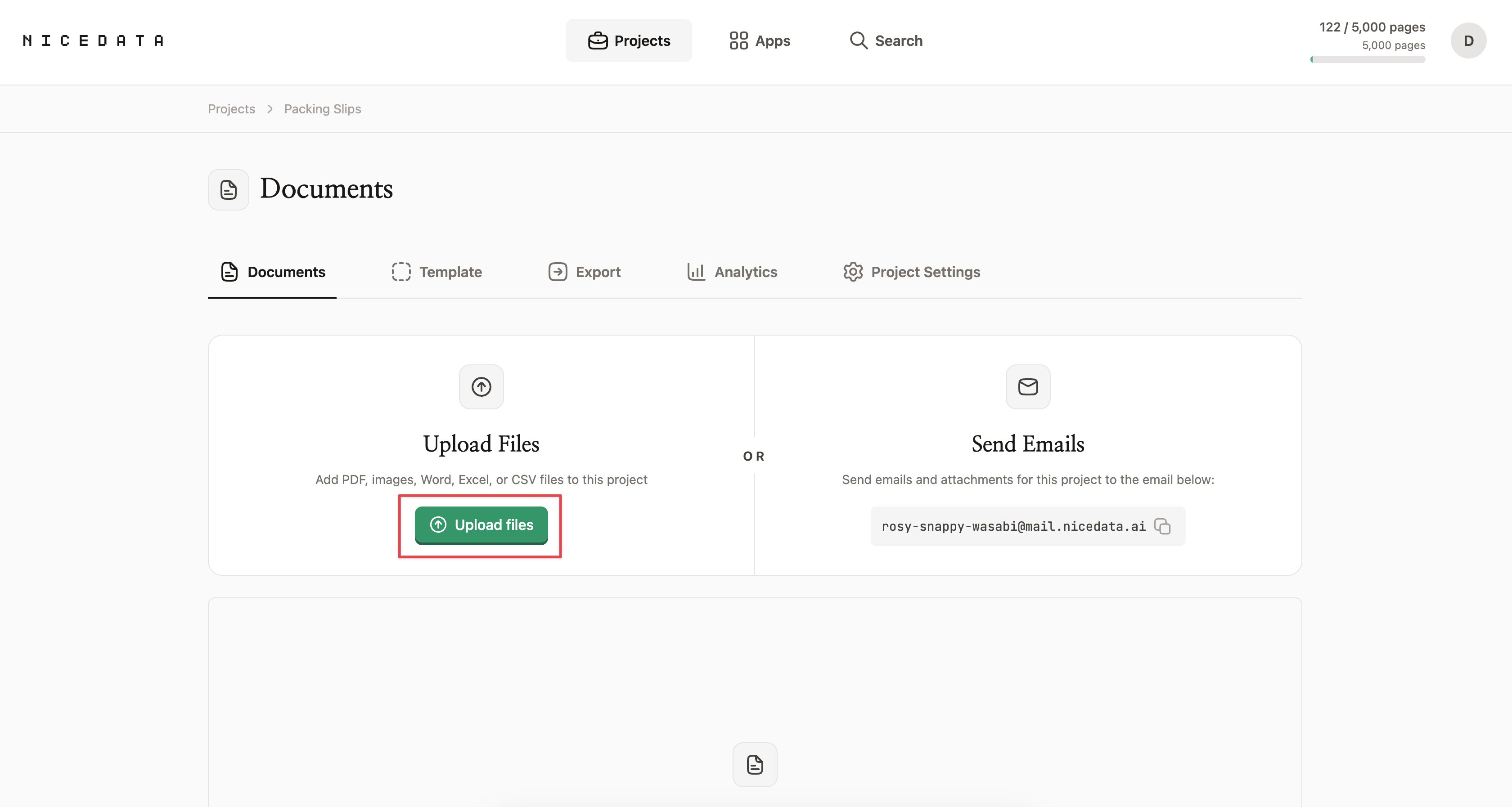
Step 1: Upload your image
Sign in to NiceData and drag your image into the upload area. You can drop in one file or hundreds at a time. NiceData accepts JPG, PNG, GIF, WebP, and TIFF images, plus PDFs if your scan is in that format.
You do not need to crop, rotate, or clean up the image first. Photos taken on your phone work fine. Slightly blurry scans work fine. Pages with mixed text, tables, and logos work fine.
Step 2: Let NiceData read it
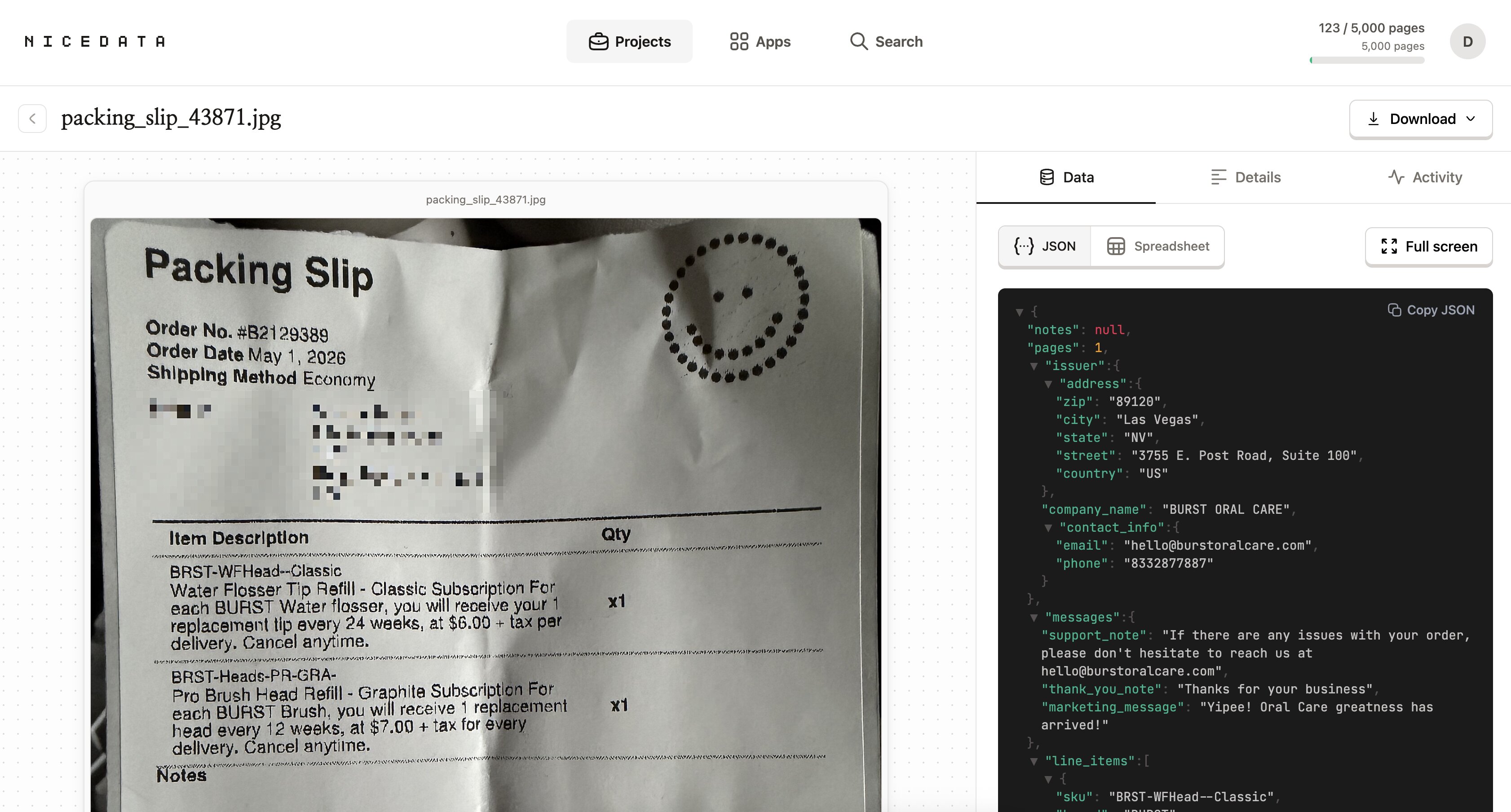
As soon as the upload finishes, NiceData starts reading the image. It uses AI to recognise every word, number, date, and amount in the picture, and organises the information into clean fields you can actually use.
You do not have to draw boxes around the text. You do not have to tell it where the total is, or which line is the date. It figures all of that out on its own, even on documents it has never seen before.
Most images finish processing in under a minute.
Step 3: Export your data
Once the extraction is done, you have a few options:
- View the data in the NiceData dashboard and copy what you need.
- Download it as a CSV to open in Excel, Google Sheets, or Numbers.
- Download it as an Excel file with headers already styled and ready to share with your team.
- Download it as JSON if you want to pass it to a developer or another tool.
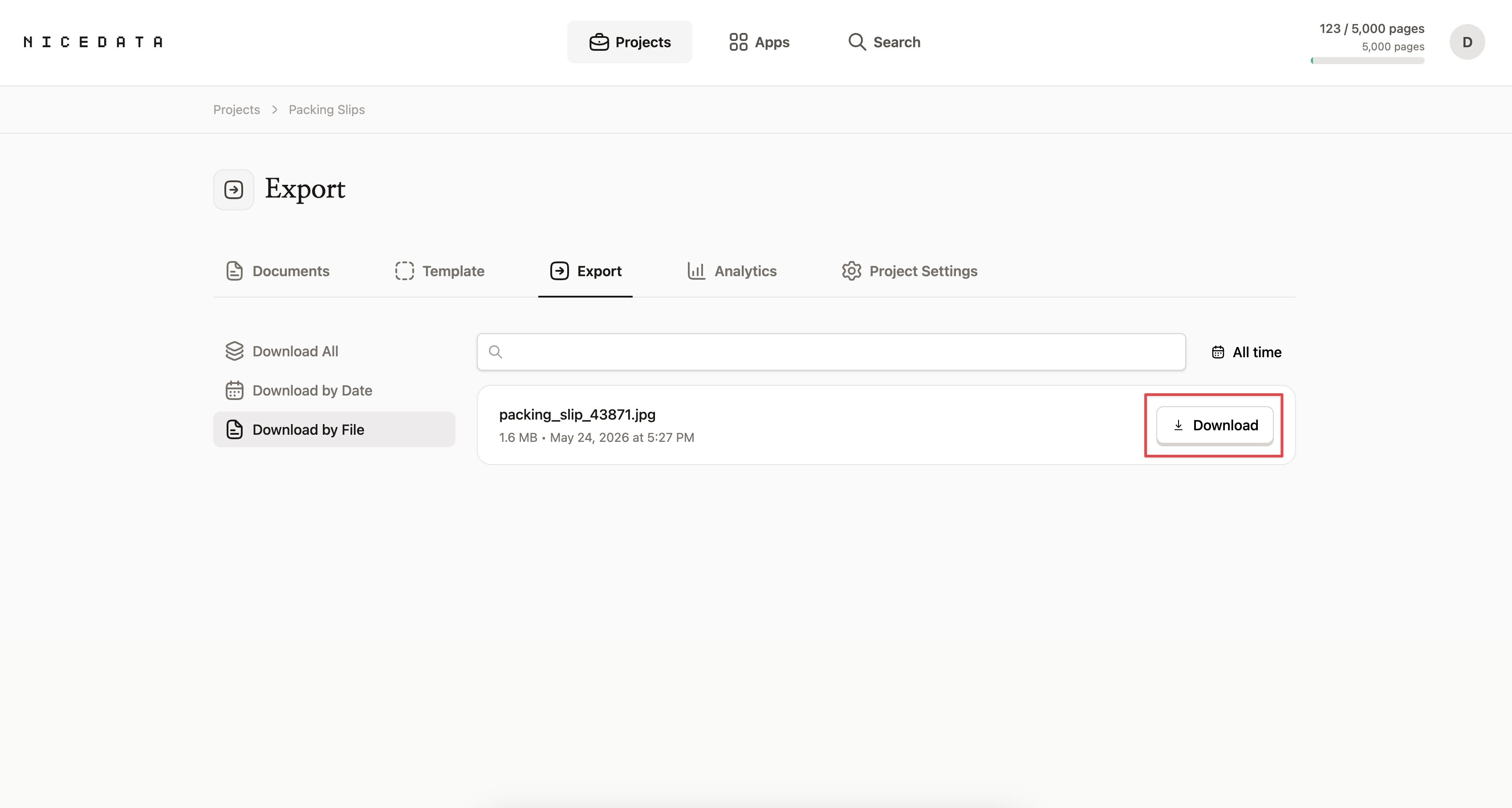
That is it. From a photo on your phone to a clean spreadsheet, in three steps.
How to control what gets extracted
By default, NiceData reads everything it can find in your image. If you only need certain fields, like just the order number and item descriptions, you can tell it in plain English.
Open your project’s Testing Playground, type your instructions in the box (something like “Only return order number and item descriptions.”), and NiceData will use those instructions for every image you upload to that project from then on.
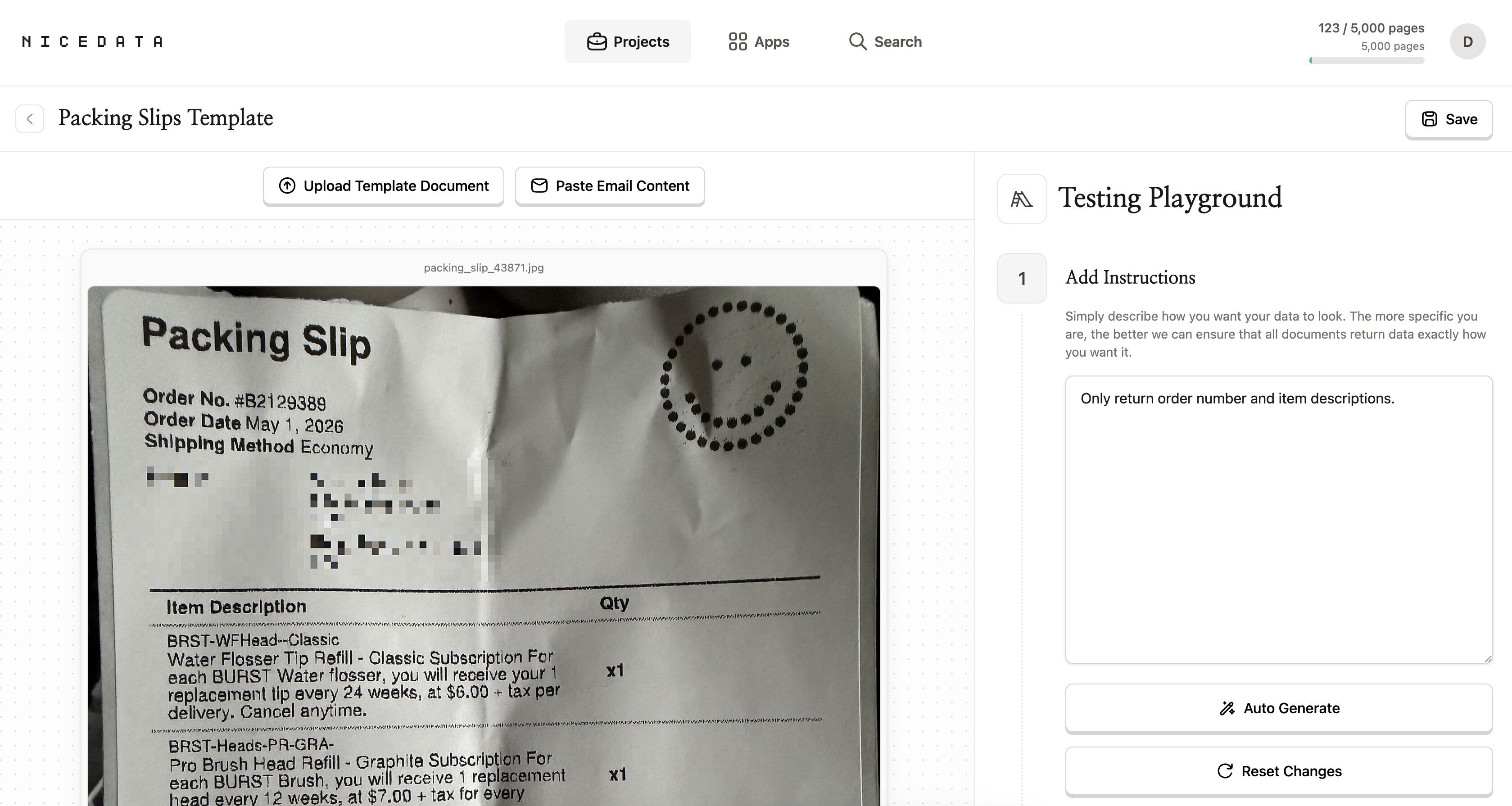
No rules to write. No fields to map. No regex. Just describe what you want and NiceData figures out the rest.
Why NiceData is the simplest way to do this
Most tools that promise to extract text from images make you work for it. You have to set up templates for every type of document. You have to train a model on dozens of examples before it starts being accurate. You have to write rules to find specific fields, or write code to call an API, or sign up for a developer account just to read one receipt.
NiceData skips all of that. You upload an image, NiceData reads it, you download the result. There is nothing to configure, no templates to maintain, and no code to write.
This is the difference. Other tools are built for large technical teams. NiceData is built for anyone with a document and a deadline.
What file types you can upload
NiceData reads text from all the common image and document formats:
- JPG and JPEG (photos and scans)
- PNG (screenshots and high-quality images)
- GIF
- WebP
- TIFF and TIF (often used by scanners)
- PDF (single page or multi-page)
You can also upload Word documents, Excel files, and CSVs if your data is already in one of those formats. NiceData handles them all the same way.
How to export your extracted text
Once NiceData has read your image, you can export the extracted text in whatever format works best for what you are doing next.
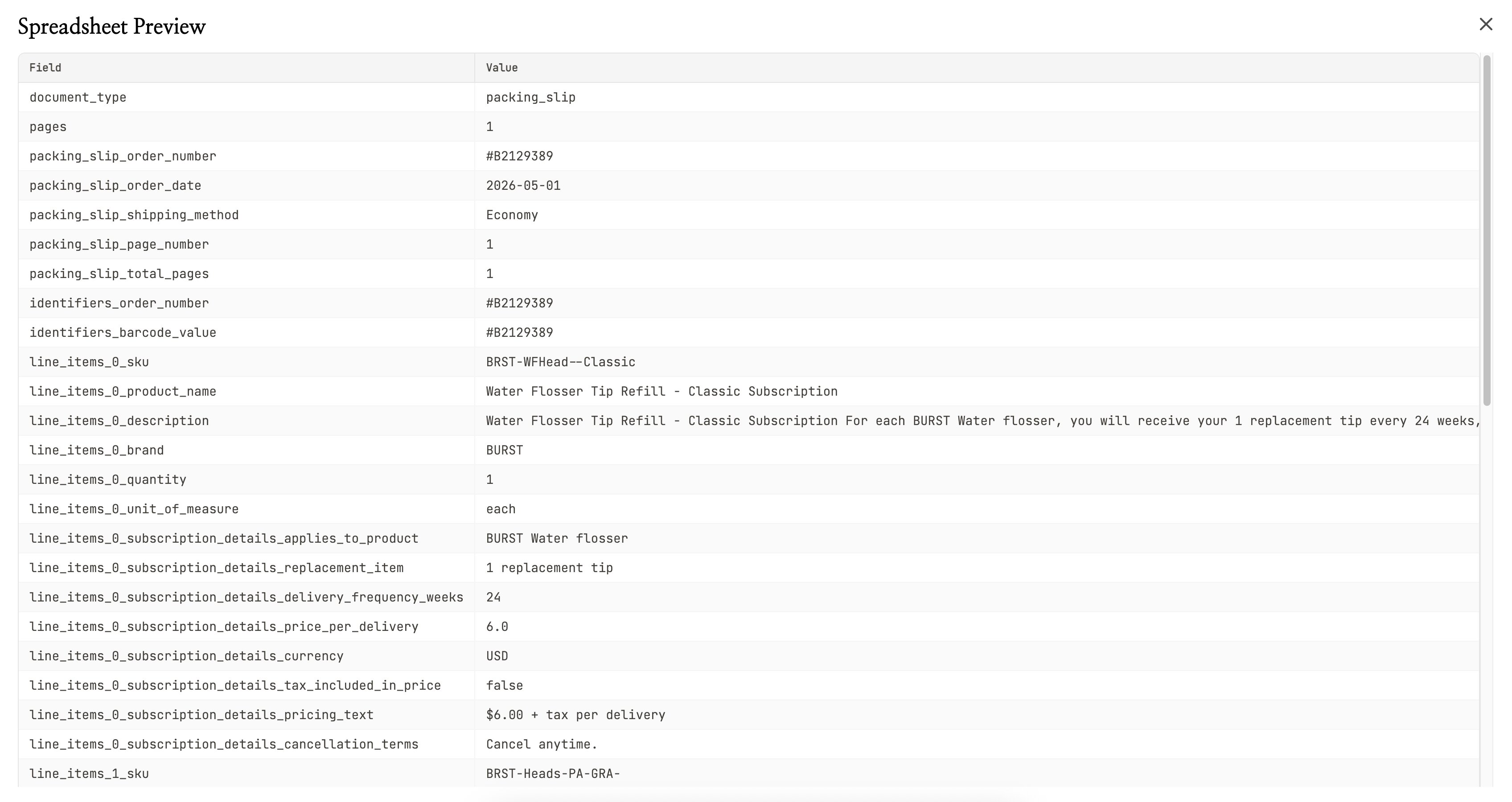
- CSV is the right choice if you want to open the data in a spreadsheet. Every field becomes a column, every document becomes a row.
- Excel is best when you want to share the file with colleagues. The headers are formatted, the layout is clean, and it opens directly in Microsoft Excel or Google Sheets.
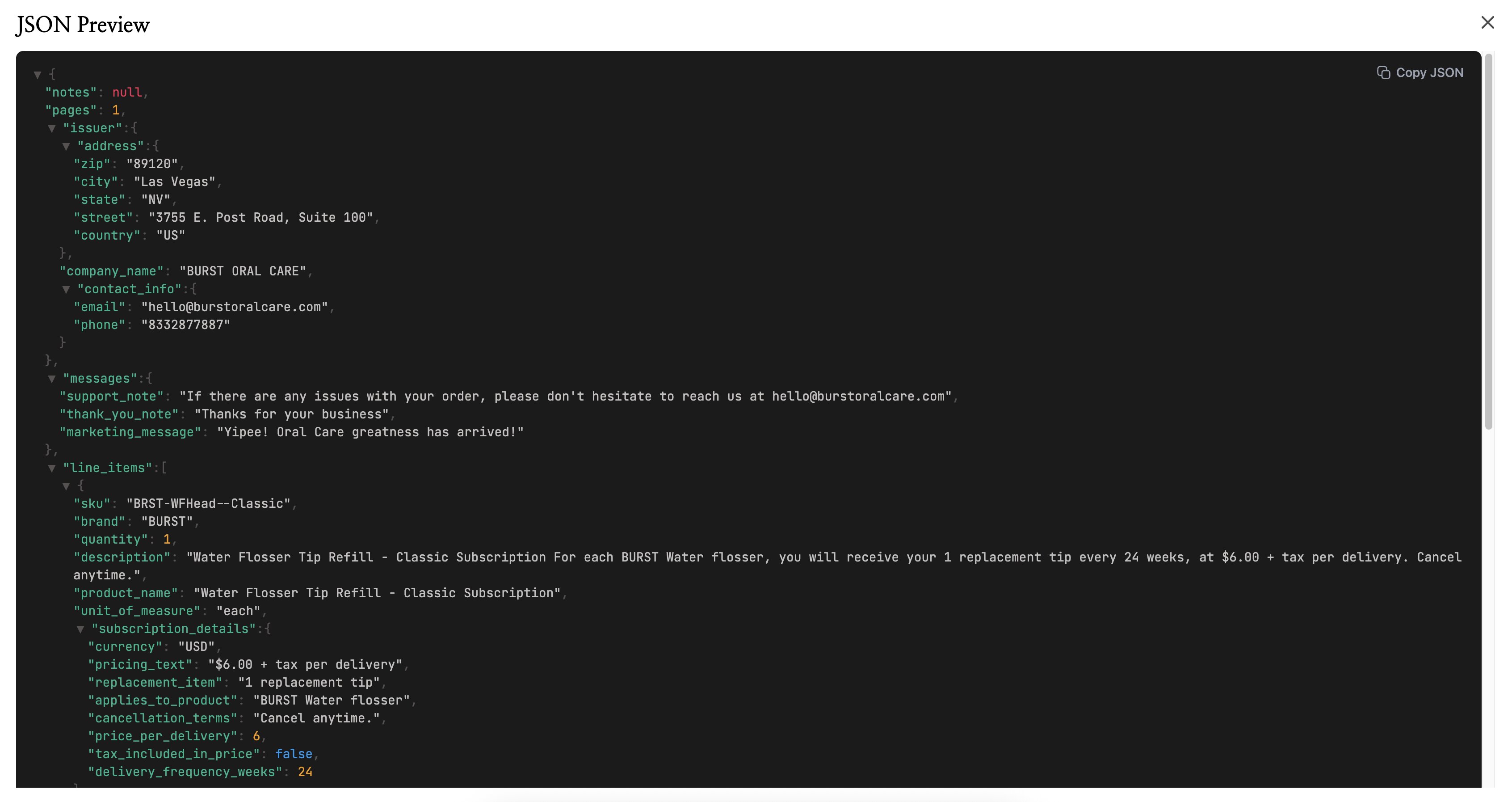
- JSON is the format developers prefer. If you are passing the data to another tool, an integration, or a custom app, JSON is the easiest to work with.
- Copy from the dashboard is the quickest option for one-off jobs. Open the document in NiceData, copy the fields you need, paste them where you want them.
You can mix and match. Export the same document as a CSV for your team and as JSON for your developer, no extra steps.
Frequently asked questions
Is it free to try?
Yes. NiceData has a 14-day free trial that includes 25 pages of extraction. No credit card required. You can test it on your own documents before deciding whether to subscribe.
Do I need to know how to code?
No. NiceData is designed for people who have never written a line of code in their lives. The entire workflow happens in your browser through a friendly interface. If you can drag a file into a folder, you can use NiceData.
How accurate is the text extraction?
Very accurate, in our experience. NiceData uses modern AI to read text, so it handles printed documents, scans, photos, and even most handwritten notes well. Accuracy holds up on documents in any language, including ones with mixed text and numbers like invoices and receipts.
What languages does it support?
Any language. NiceData reads text in English, French, Spanish, German, Italian, Portuguese, Japanese, Korean, Chinese, and dozens more. You do not have to tell it which language the document is in. It figures that out automatically.
Can it handle multi-page PDFs?
Yes. Upload a multi-page PDF and NiceData reads every page. Each page counts as one page against your monthly plan, so a 10-page document uses 10 pages of your allowance.
Is my data secure?
Yes. Your documents are encrypted in transit and at rest, and stored in isolated project folders that only you and your team can access. You can also set documents to delete automatically after 1, 14, 30, 60, or 90 days.

Dace Willmott
Founder
NiceData aims to eliminate manual data entry from document workflows. We write about AI-powered document processing, data extraction best practices, and the tools that help teams move faster with cleaner data.