Convert PDF to CSV
Converting a PDF to CSV takes seconds when you let an AI reader pull the data out for you. Maybe your PDF is an invoice, a bank statement, a price list, or a list of contacts. Whatever the document is, the goal is the same: get the data into rows and columns you can sort, filter, and calculate with.
This guide walks through why people convert PDFs to CSV, what a CSV file actually is, and the easiest way to do the conversion yourself. Converting to CSV is one of several ways to extract data from a PDF, depending on where the data needs to go.
Why convert a PDF to CSV?
PDFs are great for sharing and printing. They are terrible for working with the data inside them. As soon as you want to sort, filter, or calculate anything, you need that data in rows and columns. That is what a CSV gives you.
Common reasons people convert PDFs to CSV:
- Invoices going into accounting software or a spreadsheet for review
- Bank and credit card statements for budgeting and bookkeeping
- Supplier price lists that need to be loaded into an inventory system
- Order confirmations and shipping reports
- Contact lists and attendee sheets from a conference PDF
- Research data copied out of a published report
- Property listings, expense reports, payroll summaries, and dozens of other business documents
Doing this by hand is slow and error-prone, and the data you need is usually already laid out as a table on the page. A converter just has to read it.
What is a CSV file, and why is it useful?
CSV stands for “comma-separated values”. It is the simplest possible way to store data in a file: every row is a line of text, and every column is separated by a comma. That is the entire format.
Open a CSV in a text editor and it looks like this:
date,vendor,amount,category
2026-05-12,Acme Supplies,142.50,Office
2026-05-14,City Power,89.20,Utilities
Open the same file in Excel, Google Sheets, Numbers, or Airtable, and it becomes a proper spreadsheet with headers, columns, and sortable rows. That is what makes CSV so useful: every spreadsheet, every database, and almost every business tool ever built can read it.
A few reasons CSV is the format people reach for:
- Universal. If a tool can import data at all, it can import a CSV. There is no plugin to install and no version mismatch to worry about.
- Lightweight. A CSV is just text. Files are tiny, fast to email, and quick to open even when they have tens of thousands of rows.
- Future-proof. CSV has worked the same way for decades. A file you save today will still open in fifty years, regardless of which apps come and go.
- Easy to compare and diff. Because CSVs are plain text, you can spot changes between two versions of a file at a glance.
- Plays nicely with formulas. Once your data is in a CSV, you can pivot it, chart it, calculate totals, and build dashboards with no extra preparation.
CSV is the right pick for almost any case where the data lives in rows and columns. JSON is better when your data has nested structure. Need styled headers and formulas baked into the file instead? Convert the PDF to Excel. For everything else, CSV is the easy default.
How to convert a PDF to CSV with NiceData
There are three steps. That is the whole process.
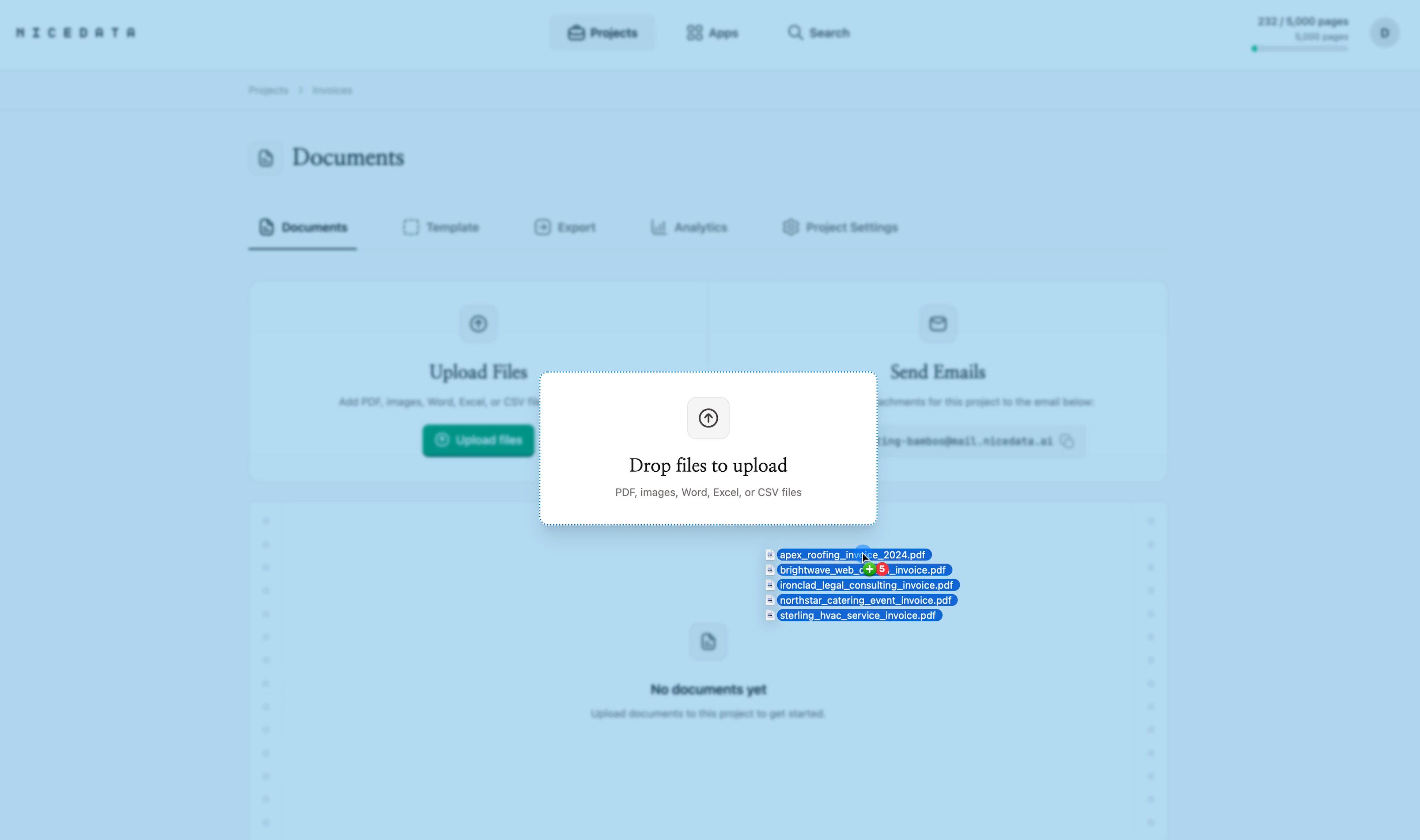
Step 1: Upload your PDF
Sign in to NiceData and drag your PDF into the upload area. You can drop in one file or hundreds at once. Single-page and multi-page PDFs both work, and so do scanned PDFs and photos of pages.
You do not need to clean up the file first. Slightly skewed scans work. Pages with logos, headers, and footers work. Tables that wrap across multiple pages work.
Step 2: Let NiceData read the file
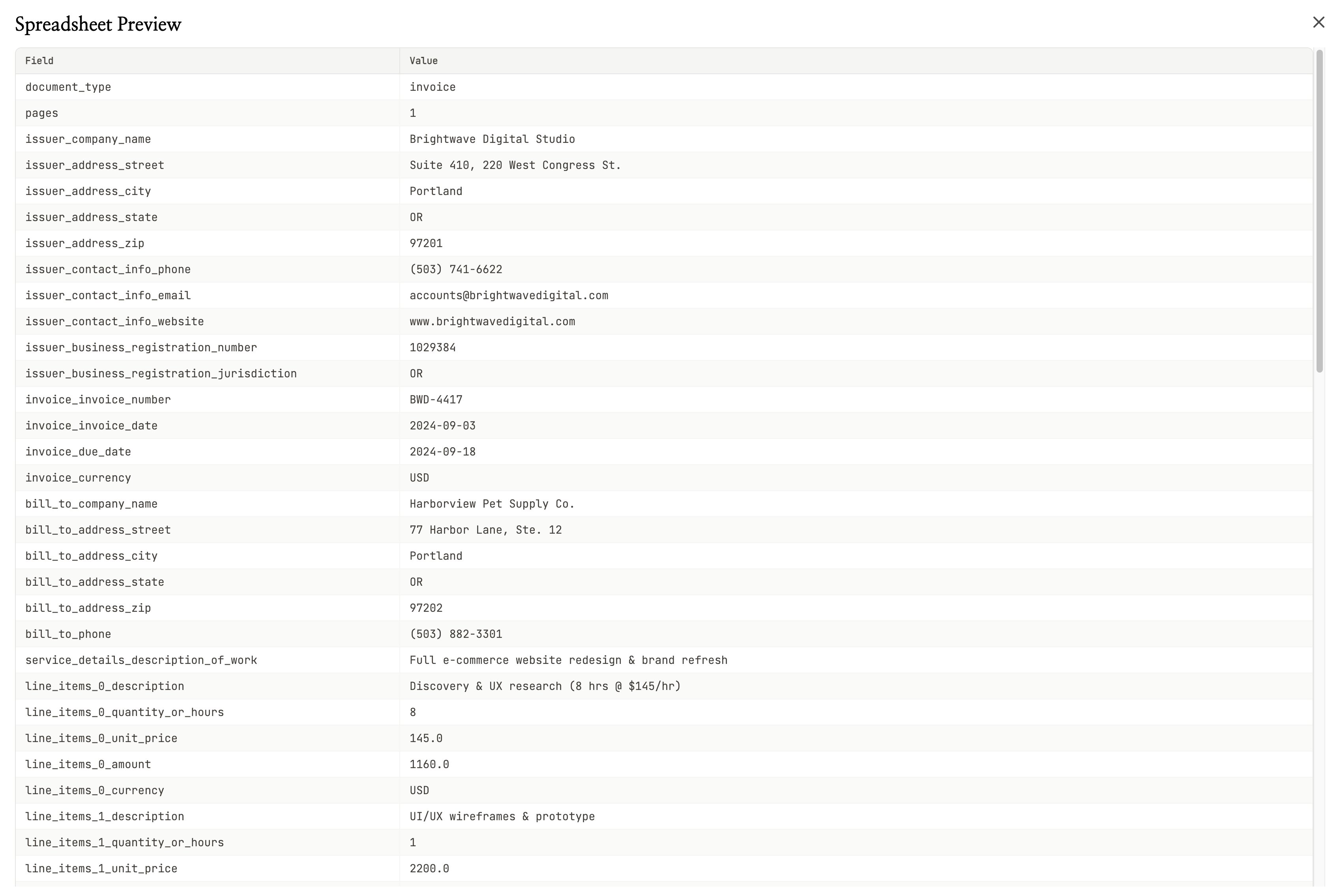
As soon as the upload finishes, NiceData reads your PDF. It uses AI to recognize every row, column, header, date, and amount on the page, and organizes them into a clean table.
You do not have to mark up the document. You do not have to tell it which column is the total or where the header row sits. It works that out on its own, even on documents it has never seen before.
Most PDFs finish processing in under a minute.
Step 3: Export as CSV
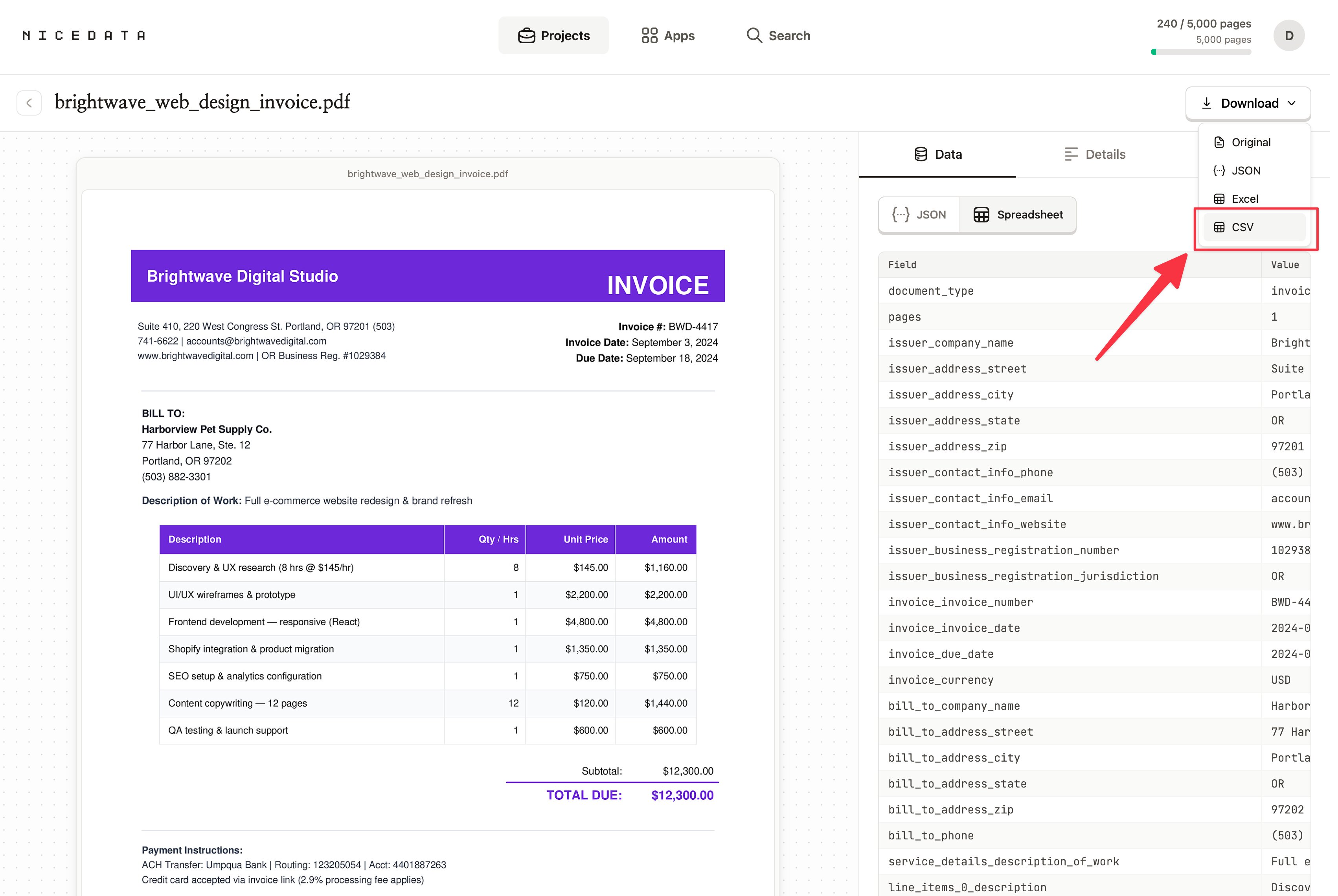
Once the extraction is done, click the Download button in the top right, then pick CSV. NiceData gives you a clean spreadsheet file with one row per field and the matching value next to it, ready to open in Excel, Google Sheets, or any other spreadsheet tool.
That is the whole process. From a PDF on your desktop to a clean CSV in your spreadsheet, in three steps.
How to control what gets extracted
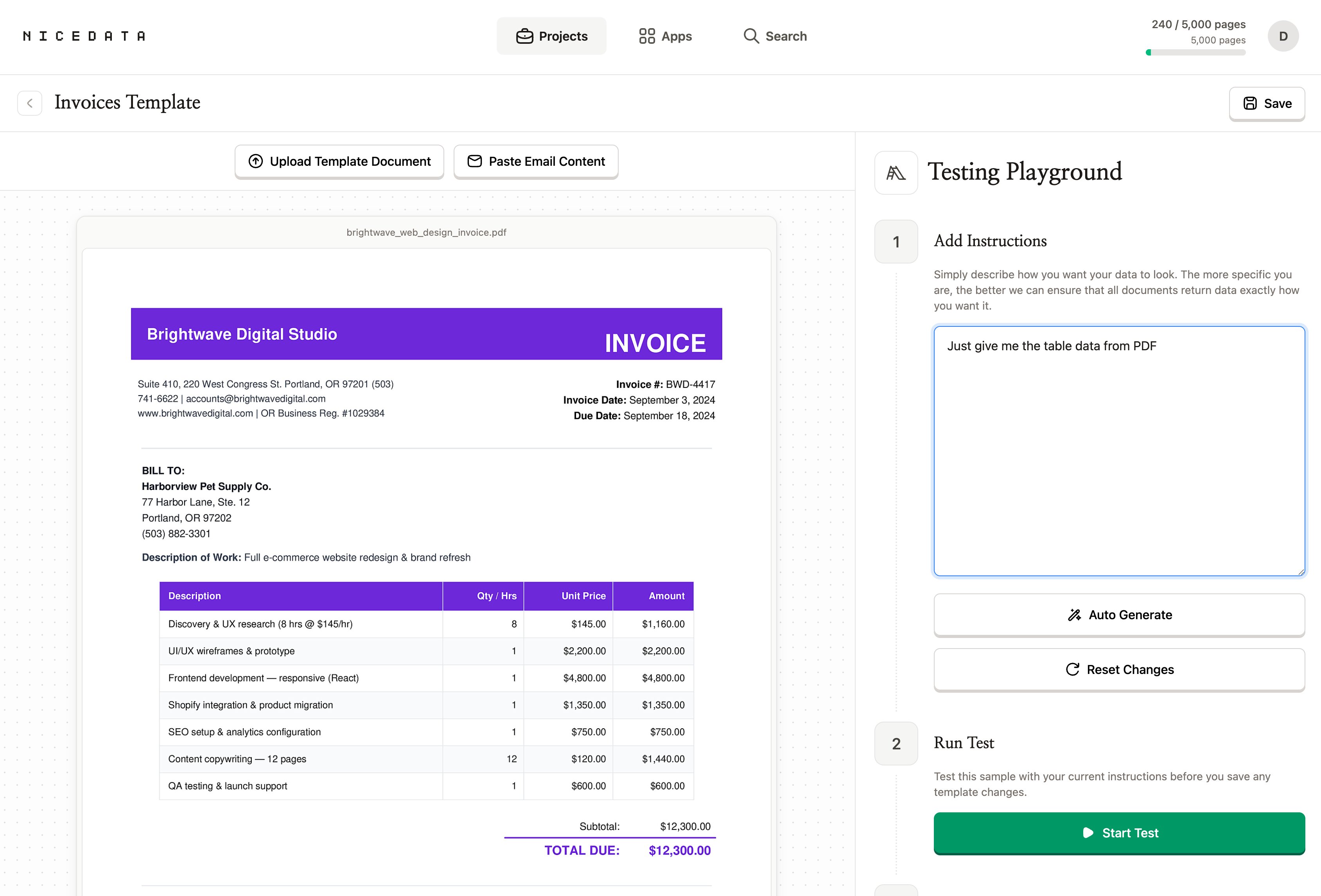
By default, NiceData pulls every field it can find from your PDF. If you only want specific columns in your CSV, you can tell it in plain English.
Create a template for your document type, write your instructions in plain English (something like “Just give me the table data from PDF”), and test it on a sample inside the template. NiceData applies that template to every PDF you upload to the project from then on.
No rules to write. No fields to map. No regex. Just describe what you want and NiceData figures out the rest.
Why NiceData is the simplest way to convert PDFs to CSV
Most tools that promise to convert PDFs to CSV make you work for it. You have to draw out a visual template for every type of document, mapping each field to a region on the page. You have to train a model on dozens of labelled examples. You have to write rules to find specific fields. Some of them even ask you to sign up for a developer account and wire up code just to read one invoice.
NiceData skips all of that. You upload a PDF, NiceData reads it, you download the CSV. If you want to fine-tune what gets extracted, you create a template and describe what you want in plain English (no field mapping, no model training, no code).
That is the difference. Other tools are built for large technical teams. NiceData is built for anyone with a PDF and a deadline. Pick a plan on the pricing page, or start with the free trial and try it on your own documents.
What file types you can upload
PDF is the headline format for this guide, but NiceData reads almost any kind of document:
- PDF (single page or multi-page, digital or scanned)
- JPG and JPEG (photos and scans)
- PNG (screenshots and high-quality images)
- TIFF and TIF (often used by scanners)
- GIF and WebP
- Word documents (DOC and DOCX)
- Excel files (XLS and XLSX)
- CSV and plain text files
Drop them all into the same project if you like. NiceData handles them the same way and gives you a single CSV at the end.
How to export your data
CSV is not your only option once NiceData has read the PDF. Pick whichever format fits where the data is going next.
- CSV is the right choice for spreadsheets and almost any business tool. Download a single PDF and you get a tidy list of fields and values; export a whole project and every field becomes a column, every document becomes a row.
- Excel is best when you want to share the file with colleagues. Headers are styled, the layout is clean, and it opens directly in Microsoft Excel or Google Sheets.
- JSON is the format developers prefer. If you are passing the data to another tool, an integration, or a custom app, JSON is the easiest to work with.
- Copy from the dashboard is the quickest option for one-off jobs. Open the document in NiceData, copy the fields you need, paste them where you want them.
You can mix and match. Export the same PDF as a CSV for your finance team and as JSON for your developer, no extra steps.
Frequently asked questions
Is it free to try?
Yes. NiceData has a 14-day free trial that includes 25 pages of extraction. No credit card required. You can convert your own PDFs to CSV before deciding whether to subscribe.
Do I need to know how to code?
No. NiceData is designed for people who have never written a line of code in their lives. The whole workflow happens in your browser. If you can drag a file into a folder, you can convert a PDF to CSV with NiceData.
How accurate is the conversion?
Very accurate, in our experience. NiceData uses modern AI to read PDFs, so it handles digital exports, scans, and even most handwritten pages well. It correctly picks up rows, columns, headers, and totals on documents it has never seen before.
Can it handle multi-page PDFs?
Yes. Upload a multi-page PDF and NiceData reads every page, up to 25 pages per document. Each page counts as one page against your monthly plan, so a 20-page PDF uses 20 pages of your allowance.
Will it work on scanned PDFs?
Yes. NiceData reads scanned PDFs and photos of pages the same way it reads digital exports. You do not need to run them through any other tool first.
Is my data secure?
Yes. Your documents are encrypted in transit and at rest, and stored in isolated project folders that only you and your team can access. You can also set documents to delete automatically after 1, 14, 30, 60, or 90 days.
Related guides
Convert PDF to Excel
Convert any PDF to a clean Excel spreadsheet in seconds with NiceData. Upload your file, read it with AI, and download a ready-to-use workbook. Try it free.
Extract Tables from PDF
Extract tables from any PDF in seconds. NiceData rebuilds every row and column as a clean grid you can drop into a spreadsheet. Try it free.
The best data entry software in 2026
Excel, Google Sheets, Airtable, and Notion compared as data entry software in 2026. NiceData automates the typing into whichever you use. Try it free.

Dace Willmott
Founder
NiceData aims to eliminate manual data entry from document workflows. We write about AI-powered document processing, data extraction best practices, and the tools that help teams move faster with cleaner data.